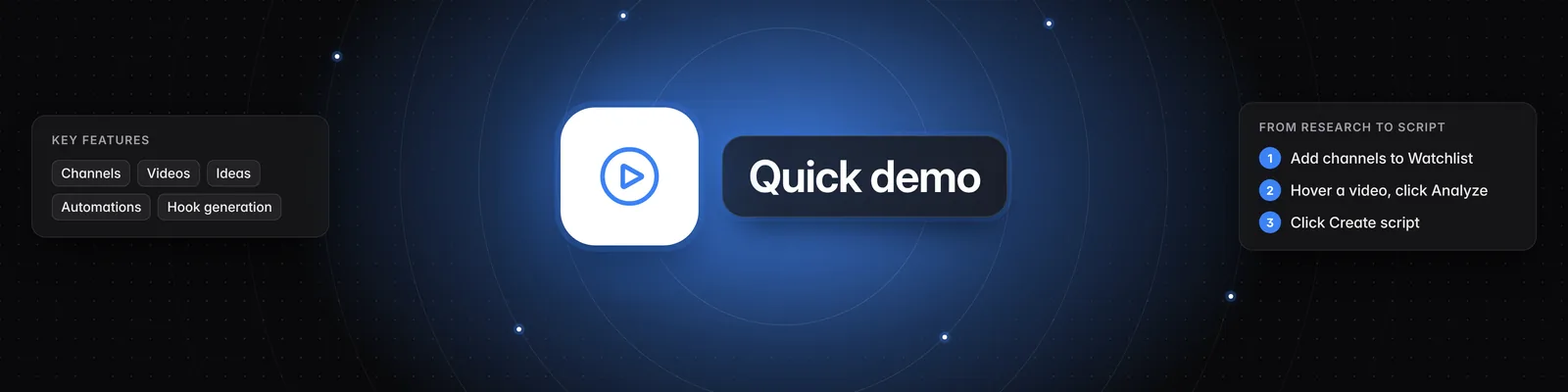
How does Sandcastles work? (quick demo)
For the deep-dive walkthrough with full workflows (mentioned at the end of this video), see How to use Sandcastles (in-depth walkthrough & 4 workflows).
Understanding Sandcastles
Sandcastles helps you grow with short-form content on YouTube Shorts, TikTok and Instagram. You pick the channels to learn from, analyze their best videos, and turn what works into ideas, hooks and scripts.
Some features, such as Automations and Global Sandcastles browsing, need a Pro, Visionary or Titan plan. See What are the differences between the Starter, Pro, Visionary, and Titan plans? for what each plan includes.
1. Channels
Find top creators and brands in your niche and add them to your Watchlist.
- Go to the Channels tab.
- Pick a mode:
- Suggested: browse recommended channels.
- Describe: describe the content you're looking for (for example, "social media marketing growth"). You can filter by platform and account size (Nano, Micro, Small, Medium, Large, Mega).
- Search: find a specific channel by handle or name.
- Add URL: paste full channel URLs, separated by new lines or commas.
- Add channels to Your Watchlist. It saves automatically as you add or remove channels.
On the Starter plan, you can only add channels that are already in Sandcastles.
2. Videos
Analyze videos from your Watchlist channels to find your next idea.
- Go to the Videos tab.
- Use the filters to narrow your feed: Channels, Keywords, Outlier score, Views, Engagement, Posted in last and Platform.
- Under Browsing mode, choose Global Sandcastles, Your personalized feed or Your analyzed library. Hover over each icon to see its name. In Your personalized feed, turn off Include analyzed to hide videos you've already analyzed.
- Click Add video URL to bring in a single video from outside your feed.
- Hover over a video and click Analyze, or click Play in new tab to watch it on the original platform. Each analysis uses a credit.
- Open an analyzed video to see its Summary, Transcript, Idea Analysis, Hook, Storytelling Format and Visual Layout.
From an analyzed video, you can:
- Click Create script to write a new script based on the video.
- Click Shortlist idea to add the idea to your Shortlist.
- Click Add to project to save it to a project.
- Click Save hook format to keep the hook for later.
- Click Export for LLM to copy the analysis for use in another AI tool.
3. Ideas
Review the ideas that come from the videos you analyze.
- Go to the Ideas tab. New ideas land in your Inbox, and the ones you save live in your Shortlist.
- Open an idea to see its summary, Content Positioning, Storytelling Format and Hook Alignment.
- Click Edit next to Your Notes to add your own notes.
- Click Turn into script, Shortlist, Discard or Go to Analysis.
4. Automations
Let Sandcastles analyze videos that match your rules for you. The ideas appear in your Inbox.
- Go to the Automations tab and click Add Rule.
- Set the rule's Name, Channel (a specific channel or All channels), Min outlier score, Min views and Min engagement rate (%).
- Set a Daily limit. This is the most videos the rule can analyze in a day. Each video a rule analyzes costs a credit, so the daily limit also caps how many credits the rule can spend each day.
- Turn on the rule's switch to make it Active.
Automations aren't available on the Starter plan.
5. Hooks
Every video you analyze adds its hook to your vault on the Hooks tab. To write new hooks for a script:
- Open a script and click the Hook tab.
- Click Generate more hooks.
- Pick high-performing hooks from your analyzed videos to repurpose for your script.
Related articles
- How to use Sandcastles (in-depth walkthrough & 4 workflows)
- What are the differences between the Starter, Pro, Visionary, and Titan plans?
If you have any questions, please reach out to support@sandcastles.ai.