How to use the Projects tab
Understanding the Projects Tab
The Projects tab is a feature designed to help you plan and organize your content within a dedicated workspace for each project. This can be an extremely useful tool for managing your creative workflow.
Organizing Your Content
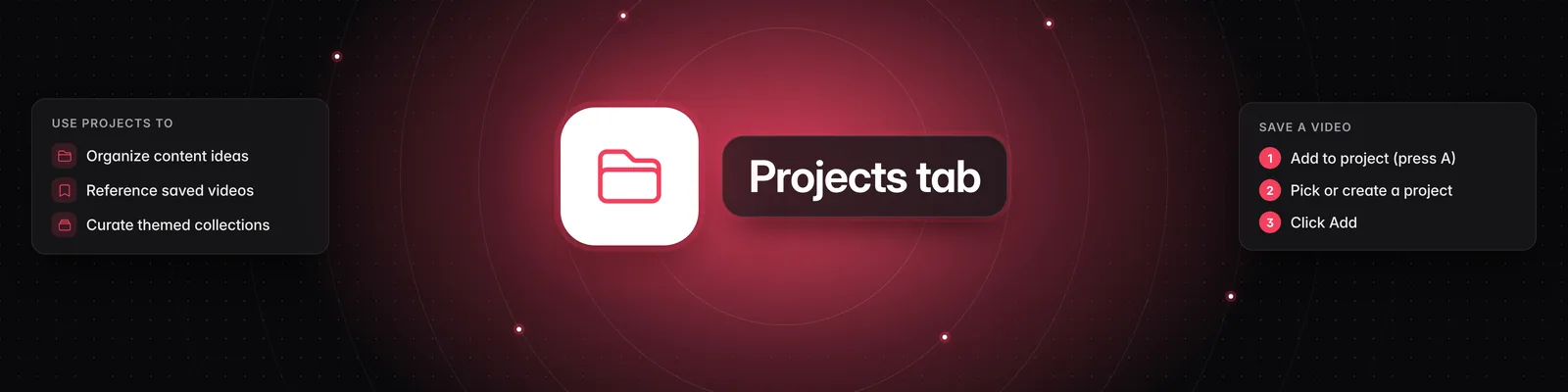
Within the Projects tab, you can create distinct folders for different projects. For example, you might have projects like "Great Visual Hooks," "Fonts," or "Visual Inspiration." Each project folder can contain multiple items, allowing you to group related content together.
Saving Videos to Projects
When you are analyzing videos in the "Videos" tab and find a piece of content that you want to save for future reference or inspiration, you can add it to a project.
- Navigate to the video you wish to save.
- Look for the "Add to project" option, which can also be activated by pressing the 'A' key.
- A prompt will appear asking if you want to choose an existing project or create a new one.
- Select an existing project from the list (e.g., "Fonts," "Great Visual Hooks," "Visual Inspiration") or choose to "Create a new project."
- Click the "Add" button.
- A confirmation message will appear indicating that the video has been added to your selected project.
Benefits of Using Projects
Using the Projects tab allows you to:
- Organize: Keep your content ideas and inspirations neatly sorted.
- Reference: Easily access specific videos or content pieces that you found valuable.
- Curate: Build collections of content over time for different themes or campaigns.
This feature provides a structured way to manage your creative assets and draw inspiration for future content creation.