How to use the Collections tab
Understanding the Collections tab
The Collections tab lets you browse curated collections of standout videos, grouped by format, hook, and story structure. The Sandcastles team picks the videos, so you can study proven examples without hunting for them yourself.
Opening Collections
- In the left sidebar, under Research, click Collections.
What's in a collection
Each collection card shows its category (and subcategory, if it has one), its name, and how many videos it holds. A New badge means videos were added to that collection in the last 14 days.
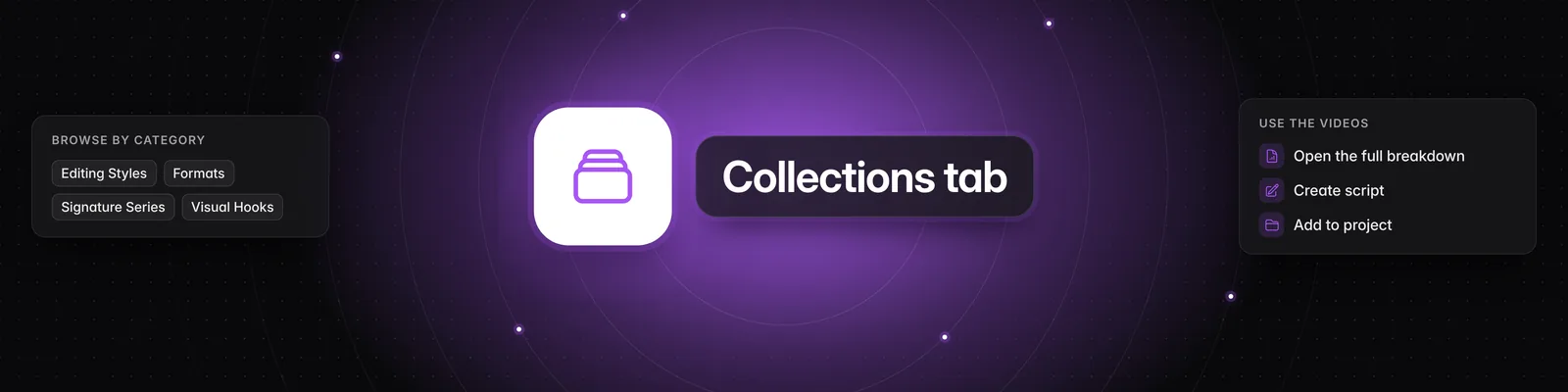
Collections are grouped into these categories:
- Editing Styles
- Formats
- Kallaway's Favorites
- Signature Series
- Visual Hooks
Collections are curated by Sandcastles. You can't create your own collections or add videos to them. To save videos for yourself, add them to a project instead (see How to use the Projects tab).
Finding a collection
- Search collections: Type part of a collection's name.
- Category: Click the tag icon and pick a category, or All.
- Subcategory: After you pick a category, click the sliders icon to narrow it down. This only appears when the category has subcategories.
- Sort by: Click the arrows icon to sort by Name, Category, Newest or Oldest.
Browsing a collection's videos
- Click a collection to open it.
- Type in Search videos to filter by video title or channel handle.
- Click the arrows icon (Sort by) to order videos by Outlier score, Views, Engagement rate, Newest or Oldest. Videos are sorted by outlier score by default.
Each video shows its outlier score, views, engagement rate, channel handle and when it was posted.
Using a video from a collection
- See the breakdown: Click a video to open its Video Detail page with the Summary, Transcript, Idea Analysis, Hook, Storytelling Format and Visual Layout. You don't need to analyze collection videos yourself, and opening one doesn't use credits.
- Write a script: On the Video Detail page, click Create script to start a script based on the video.
- Save it to a project: On the Video Detail page, click Add to project.
- Watch the original: Hover over a video and click the play icon (Play in new tab).
Exporting a collection
- Open the collection. If you search first, only the videos shown are exported.
- Click the cloud icon (Export).
- Choose JSON or CSV and click Start export.
- When it's ready, you'll get a notification with a Download button.
Exports include up to 500 videos and need a Pro, Visionary or Titan plan.
Collections on each plan
| Feature | No plan | Starter | Pro, Visionary, Titan |
|---|---|---|---|
| See the list of collections | Yes | Yes | Yes |
| Open every collection | No | Yes | Yes |
| Open videos and see their breakdown | No | Yes | Yes |
| Export a collection | No | No | Yes |
See What are the differences between the Starter, Pro, Visionary, and Titan plans? for everything else each plan includes.
Why do I see "Unlock all collections"?
The green Unlock all collections button appears when your account doesn't have an active plan, for example if you signed up but haven't picked a plan yet, or your subscription has ended. Every plan includes all collections, so you won't see this button on Starter, Pro, Visionary or Titan.
Without a plan, collections show a lock icon. If you open a collection from a link someone shared with you, that collection unlocks so you can preview its videos, but you'll need a plan to open them.
To unlock every collection:
- Click Unlock all collections, or click a locked collection.
- If you've never had a Sandcastles subscription, click Get started risk-free in the Try Sandcastles for $5 window to start the Starter plan.
- If you've subscribed before, choose a plan in the plans window. If the Unlock all collections window opens first, click Pick a plan.
Troubleshooting
- "This plan isn't available for you because you've had a previous subscription." The $5 Starter plan is only for accounts that have never subscribed. Click Pick a plan to choose Pro, Visionary or Titan.
- "No collections found": Clear your search or set Category to All.
- Export asks you to upgrade: Exports aren't included in Starter. Upgrade to Pro or higher to export a collection.
Related articles
- How to use the Video Detail Page in Sandcastles
- How to use the Videos tab
- How to use the Hooks tab in Sandcastles
- How to use the Projects tab
If you have any questions, please reach out to support@sandcastles.ai.