How to use the Video Detail Page in Sandcastles
VideosRecommendedUpdated October 2, 2026
Using the Video Detail Page
The Video Detail Page shows the full analysis of a video and lets you turn it into a script, save it to a project or reuse its hook. To open it, click any analyzed video in the Videos tab. To find the right videos first, see How do I use the filter settings in the Videos tab?.
What's on the page
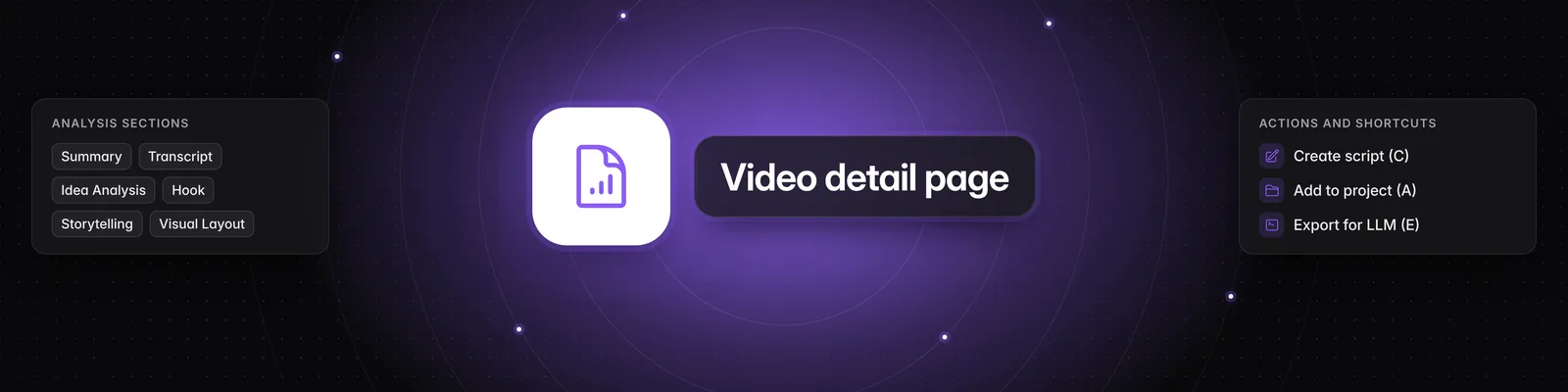
On the left you'll see the video, the channel handle, when it was posted, and its outlier score, views and engagement rate. On the right is a Summary, followed by five tabs:
- Transcript: the spoken text and its word count. Click the list icon (Show sections) to break it into sections with timestamps, or the copy icon (Copy transcript) to copy it. If the post has a caption, it appears below the transcript.
- Idea Analysis: Topic, Idea Seed, Unique Angle, Common Belief to Challenge, Contrarian Reality to Create Contrast and Supporting Evidence.
- Hook: the hook's Category, its Formula, the Spoken Hook and an Analysis of how well it fits the rest of the video.
- Storytelling Format: the format's Category, a Description and an Analysis.
- Visual Layout: the visual style's Category and Sub-category.
Actions you can take
Use the buttons under the video. The letter after each one is its keyboard shortcut.
- Create script (C): starts a new script based on this video.
- Shortlist idea (S): every analyzed video's idea is added to Ideas > Inbox automatically, so this button usually shows Shortlisted idea. If you discarded the idea, click it to send the idea back to your Inbox. See How to use the Ideas tab.
- Add to project (A): saves the video to an existing project or a new one. See How to use the Projects tab.
- Save hook format (H): adds the hook to Your Favorite Hooks in the Hooks tab, and the button changes to Hook format saved. See How to use the Hooks tab in Sandcastles.
- Export for LLM (E): copies a ready-made prompt with the video's analysis, so you can paste it into ChatGPT, Claude or another AI tool.
- Open in new tab (O): opens the original post on its platform.
- Remove from library (R): removes the video and its idea from your library. You'll be asked to confirm, and this can't be undone.
Keyboard shortcuts
Shortcuts work when you aren't typing in a text box and no pop-up is open.
| Key | What it does |
|---|---|
| ← / → | Open the previous or next analyzed video from your Videos tab list. You can also click the arrows next to the video title. |
| Esc | Go back to the Videos tab |
| C | Create script |
| S | Shortlist idea |
| A | Add to project |
| H | Save hook format |
| E | Export for LLM |
| T | Copy transcript |
| O | Open in new tab |
| R | Remove from library |
Important notes
- Still analyzing: while a video is queued or being analyzed, you'll see a Hold tight! message and most buttons stay greyed out until it finishes. If the analysis fails, the page explains why. See Why did my video analysis fail?.
- Not analyzed yet: if you open a video that isn't in your library, you'll see an Analyze button instead of the analysis. See How do I deep analyze a video in the Videos tab?.
- Videos from Collections: if you open a video from Collections that isn't in your library, Shortlist idea and Save hook format won't be saved.
- On a phone: choose a section from the menu above the analysis. Video shows the video and the action buttons.
- Workspace guests: guests have read-only access. You can read the analysis, copy the transcript, use Export for LLM and open the original post, but you can't create scripts, shortlist ideas, add to projects, save hook formats or remove videos.
If you have any questions, please reach out to support@sandcastles.ai.