How to use the Ideas tab
Understanding the Ideas Tab
The Ideas tab is where you review the ideas Sandcastles creates from the videos you analyze. New ideas land in your Inbox. From there you can shortlist them, discard them or turn them into scripts.
Where ideas come from
Every video you analyze becomes an idea in your Inbox. You can analyze videos in a few ways:
- Analyze a video in the Videos tab, or paste a YouTube, TikTok or Instagram link with Add video URL.
- Use Bulk Analyze in the Videos tab to queue up to 100 videos from your feed at once. Not available on the Starter plan.
- Create rules in the Automations tab to analyze new videos from your Watchlist automatically. Not available on the Starter plan. Ideas added this way show a purple lightning bolt icon.
Each analysis uses 1 credit. An idea appears in your Inbox once its video finishes analyzing. The number next to Ideas in the sidebar shows how many ideas are waiting in your Inbox.
The default automation rule
Sandcastles adds a rule called Top Daily Performers (Sandcastles Default) to your Automations tab. It's switched off, so it won't analyze anything or use credits until you turn it on. When it's on, it analyzes new videos from your Watchlist that have:
- An outlier score of 1 or higher
- At least 25,000 views
- An engagement rate of 2% or higher
It has a daily limit of 3 videos, so it can use up to 3 credits a day. To turn it on, go to Automations and switch the rule to Active. A rule only picks up videos posted after it was last turned on or edited. See How to use the Automations tab for more.
Sorting and searching
- Type in Search ideas to find ideas by title or topic.
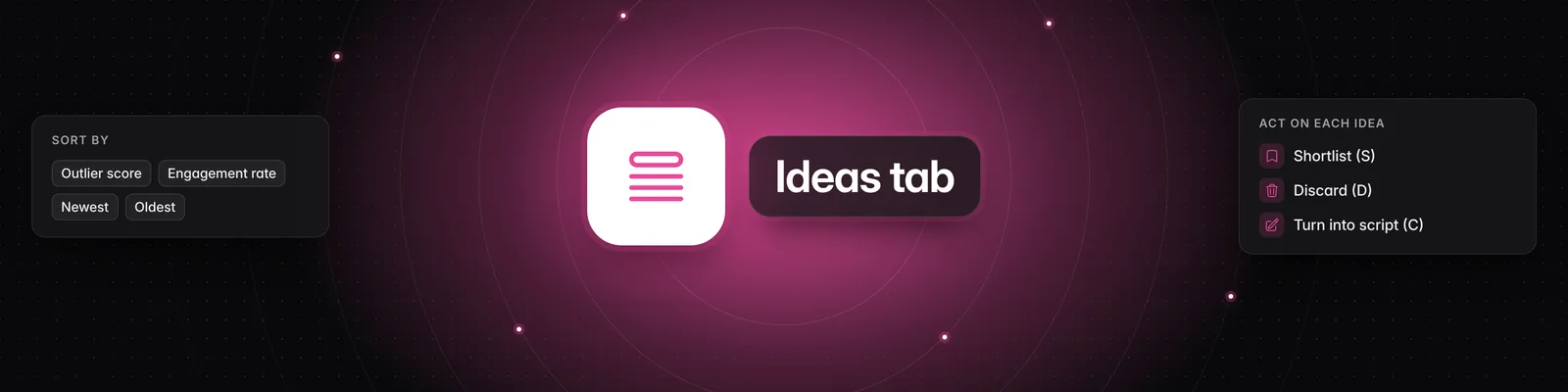
- Click the Sort by icon next to the search box and choose an option:
- Saved recently (default): the most recently added ideas first.
- Outlier score, Views or Engagement rate: highest first.
- Newest or Oldest: by the date the original video was posted.
Reviewing an idea
- Click Ideas in the left sidebar.
- Choose Inbox for new ideas or Shortlist for ideas you've saved.
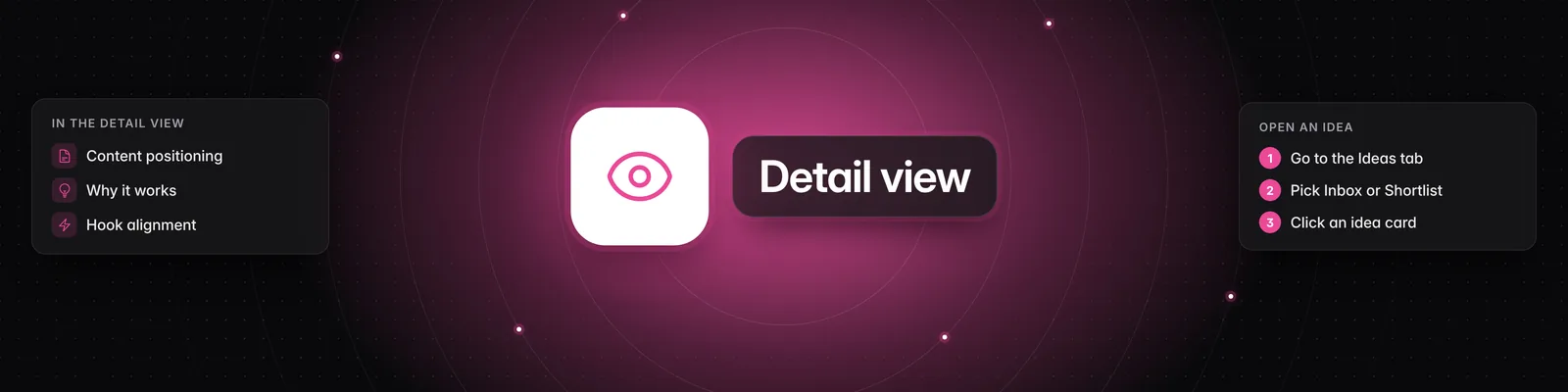
- Click an idea to open it in the panel on the right.
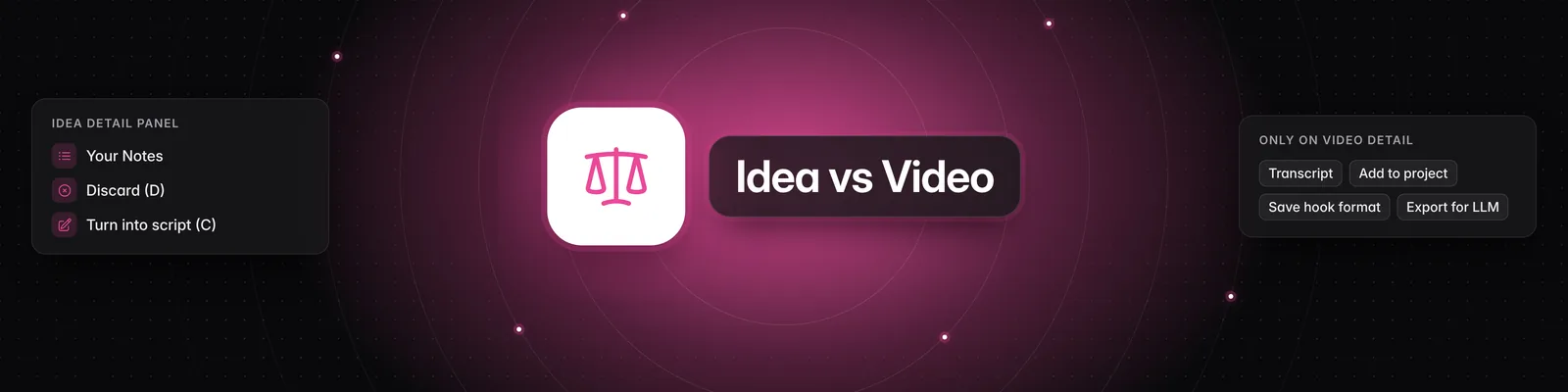
- Choose Shortlist, Discard, Go to Analysis or Turn into script at the top of the panel.
The panel shows the idea's title, a summary and the original video, followed by these sections:
- Your Notes: click Edit, type your notes, then click Save or press Enter.
- Content Positioning: the video's unique angle.
- Storytelling Format: the format category and Why it Works.
- Contrast Mechanism: the common belief and the contrarian reality, when the video has one.
- Hook Alignment: how well the hook fits the rest of the video.
- How to Personalize this Video for Your Content Niche: three ways to adapt the idea for your audience. If you haven't described your content yet, this section shows a Describe your content button instead.
Go to Analysis opens the full video analysis. Turn into script starts a new script from the idea and carries over your notes. See How can I see more information on an individual idea? and How to use the Scripts tab.
Keyboard shortcuts
Shortcuts work while an idea is open and you aren't typing in a text box.
| Key | What it does |
|---|---|
| Up arrow / Down arrow | Open the previous or next idea |
| S | Move the idea to your Shortlist (Inbox only) |
| D | Discard the idea |
| A | Go to Analysis |
| C | Turn into script |
| E | Edit your notes |
| Esc | Close the idea |
When you shortlist or discard an idea, it leaves the list and the next idea opens. This lets you work through your Inbox with S and D.
Using the Shortlist
The Shortlist holds the ideas you want to pursue. Open any of them to read the details, Go to Analysis, Turn into script or Discard it.
Exporting ideas
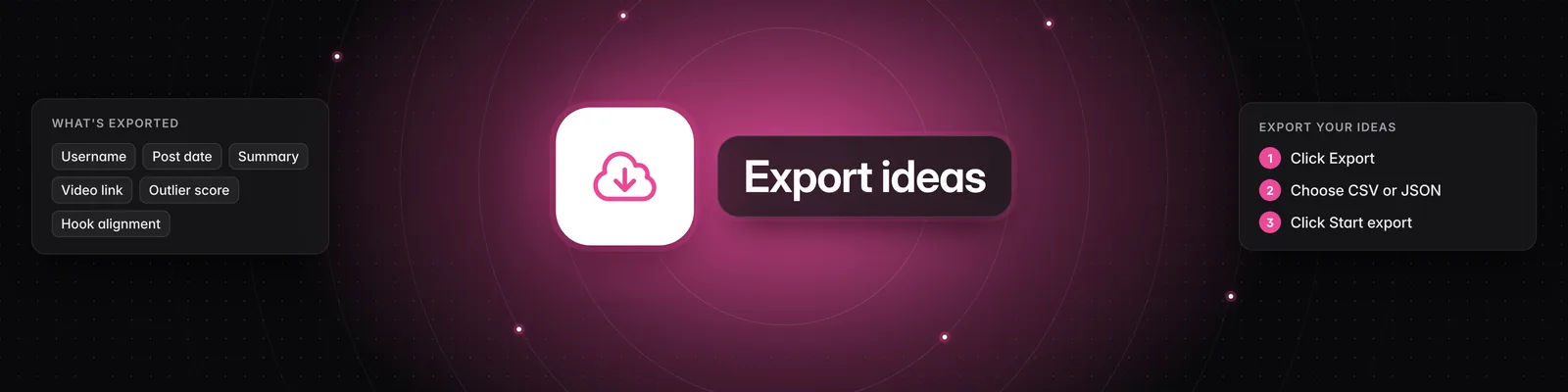
Click the Export icon next to the sort icon and choose Inbox, Shortlist or All. The export includes the ideas that match your current search. See What information can you export from the Ideas tab?.
Channels and Persona
- Your feed and your automation rules use the channels in your Watchlist. Manage them in the Channels tab. See How to use the Channels tab.
- Describe your content in the Persona tab so your ideas include suggestions for your niche. See How to use the Persona tab.
Important notes
- Discard all at the top of your Inbox discards every idea in your Inbox at once, with no confirmation step. Your Shortlist isn't affected.
- Discarded ideas no longer appear in your Inbox or Shortlist.
- Personalization suggestions are created when a video is analyzed. Ideas analyzed before you filled in your Persona won't get them later, so describe your content first.
- If you're a guest in someone else's workspace, you have read-only access. You can browse ideas and open the analysis, but you can't shortlist, discard, edit notes, create scripts or export.
If you have any questions, please reach out to support@sandcastles.ai.