How to use the Scripts tab
Understanding the Scripts tab
The Scripts tab is where you write, edit and manage your video scripts. Every script moves through four steps: Topic, Research, Hook and Script. Each new script costs 1 credit.
Write a script from scratch
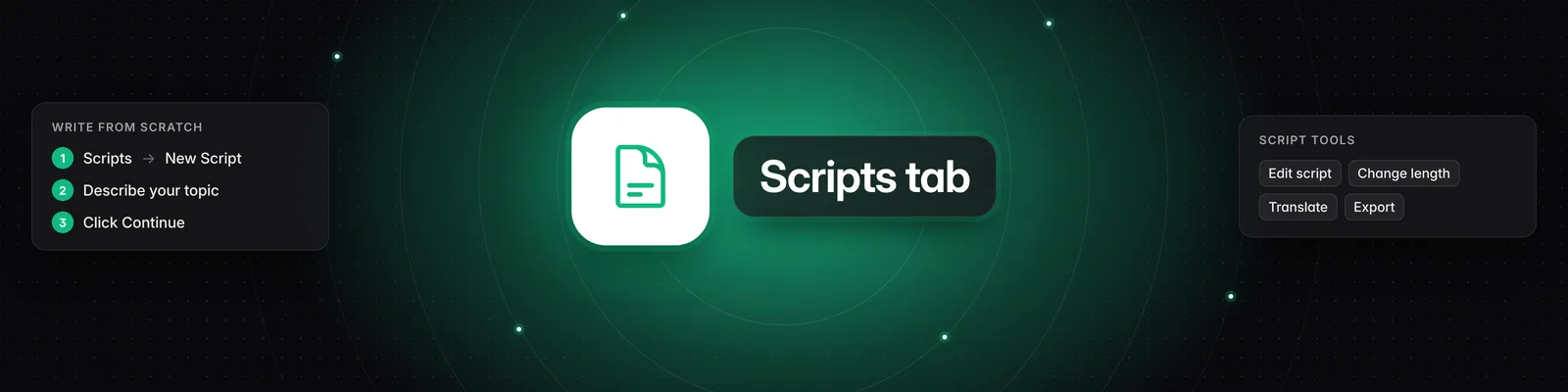
- Click Scripts in the left sidebar.
- Click New Script (the plus icon).
- In "Describe the topic of the video you want to create", describe your video. The more context you give, the better the script.
- Click Continue, then work through Research and Hook, clicking Continue each time.
- On the Script step, Sandcastles writes your first draft.
Turn a video or idea into a script
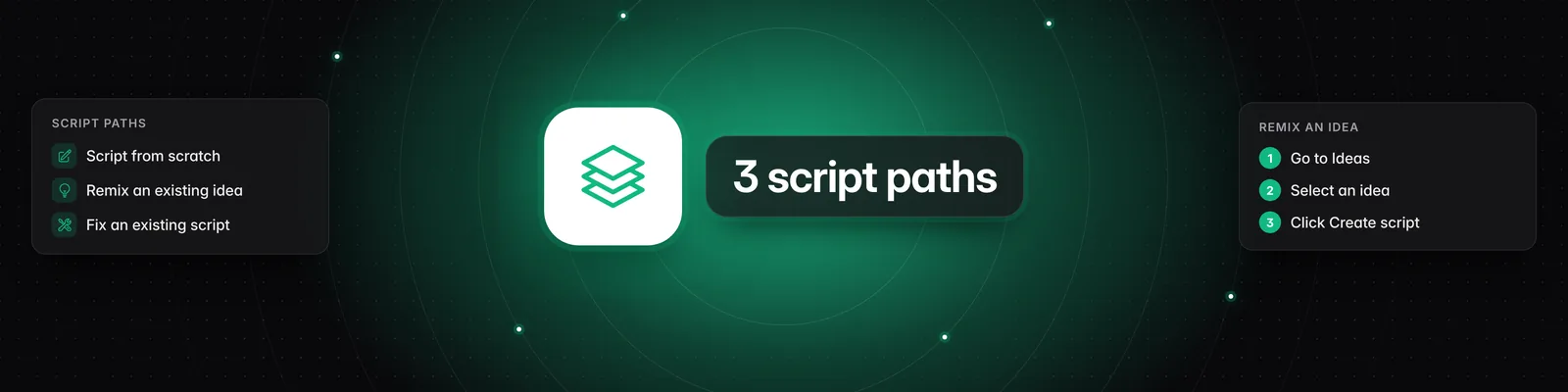
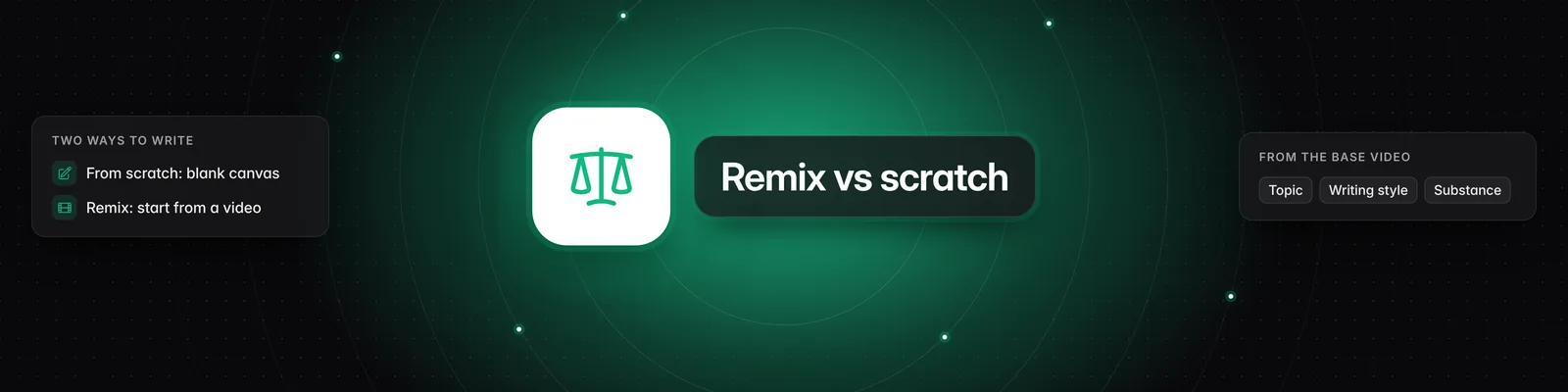
- Open a video from the Videos tab and click Create script, or open an idea in Ideas and click Turn into script. You can also press C.
- The video is attached to your new script. In "Add any additional context or customization you want to make to the original idea", add your own angle if you like.
- Click Continue and follow the same steps as above.
Fix an existing script
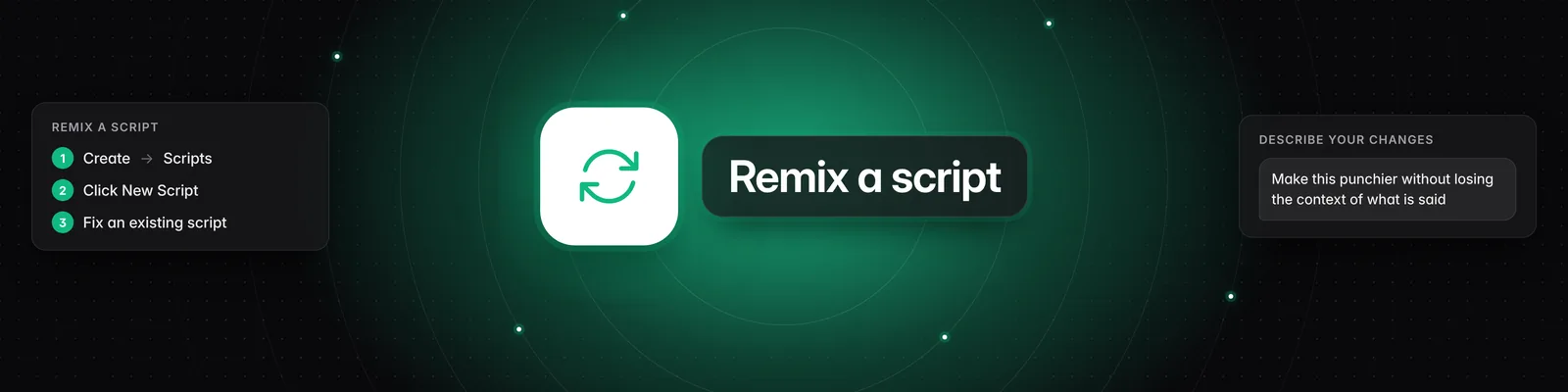
- Click Scripts > New Script.
- Click Fix an existing script, paste your draft and click Save.
- In "What changes do you want to make to your script?", describe what you want to improve.
- Click Continue. Sandcastles uses your draft as the starting point.
Edit your script
On the Script step you can:
- Edit script: make changes by hand, then click Save script.
- Rewrite from scratch: get a brand-new draft.
- What changes would you like to make?: type an instruction and press Enter. Highlight lines first to change only those lines.
- Length: pick a length from 30 to 120 seconds, then click Change length.
- Translate: pick a language, then click Translate.
- Script version history (the clock icon): compare an earlier version with the current one and click Restore to go back.
- Copy to clipboard or Download the script as a text file.
Writing scripts in another language
There's no setting to choose a language before a script is written. To get a script in another language:
- Finish your script, then click Translate on the Script step.
- Choose English, Dutch, French, German, Italian, Portuguese, Spanish or Swedish, then click Translate.
- If the wording doesn't sound natural, type an instruction in "What changes would you like to make?", or click Edit script to fix it by hand.
- To undo a translation, open Script version history and restore the earlier version.
Tip: Your Persona's Writing style sample is used every time a script is written or revised. A sample written in your target language can help.
Credits
- Each new script costs 1 credit, including scripts made with Fix an existing script or from a video or idea.
- Changes to a script you've already created are free. This includes edits, Rewrite from scratch, length changes and translations.
To learn more, read How does the credit system work?.
Personalize scripts with Persona
On Pro, Visionary and Titan, fill out the Persona tab so your scripts match your brand. Your Context and Writing style are used in every script. Read How to use the Persona tab for details.
Persona isn't available on Starter. If you open the Persona tab on Starter, you'll see "Persona is available on our full plans." Click Upgrade to a full plan to unlock it.
Exporting scripts
- In the Scripts list, search for the scripts you want. The export includes every script that matches your search.
- Click Export (the cloud icon).
- Choose JSON or CSV and click Start export. Exports include up to 500 scripts.
Exports aren't available on Starter.
If you have any questions, please reach out to support@sandcastles.ai.