How to use the Automations tab
Understanding the Automations Tab
Automation rules analyze new videos from your watchlist for you and add them to your Ideas tab (see How to use the Ideas tab). Every video a rule analyzes costs 1 credit, and each rule's daily limit caps how many credits it can use per day. Automations are available on the Pro, Visionary and Titan plans.
How automation rules work
- Every active rule picks up new videos from your watchlist channels that meet all of its filters.
- A rule only picks up videos published after you created it or last changed it. Editing a filter, renaming the rule or switching it off and on again all reset this starting point, so older videos are never analyzed.
- Each rule analyzes up to its daily limit, starting with the newest videos.
- Videos already in your Ideas tab are skipped and don't cost a credit.
- Analyzed videos appear in your Ideas tab with a purple lightning bolt badge (Added by automation rule).
How many credits automations use
Just like Bulk Analyze, every video a rule analyzes costs 1 credit. A rule with a daily limit of 3 could use up to about 90 credits over a 30-day billing cycle. If you have more than one active rule, add their daily limits together.
Automations share your monthly credits with scripts, reports and the videos you analyze yourself, so pick daily limits that leave room for the rest of your work.
| Plan | Monthly credits | Automations |
|---|---|---|
| Starter | 10 | Not available |
| Pro | 100 | Available |
| Visionary | 250 | Available |
| Titan | 1,500 | Available |
For example, on Pro a daily limit of 1 uses up to about 30 credits a month, while a daily limit of 3 could use most of your 100 credits. See How does the credit system work? and What are the differences between the Starter, Pro, Visionary, and Titan plans? for more detail.
Is the default rule switched on?
No. When you set up your watchlist, Sandcastles adds a rule called Top Daily Performers (Sandcastles Default) to your workspace. It starts switched off and doesn't use any credits until you turn it on. Its settings are:
- Channel: All channels
- Min outlier score: 1 (an outlier score of 1 or higher)
- Min views: 25,000 (at least 25,000 views)
- Min engagement rate (%): 2 (2% or higher)
- Daily limit: 3 (up to about 90 credits a month)
You can edit it, switch it on or delete it like any other rule.
Create a rule
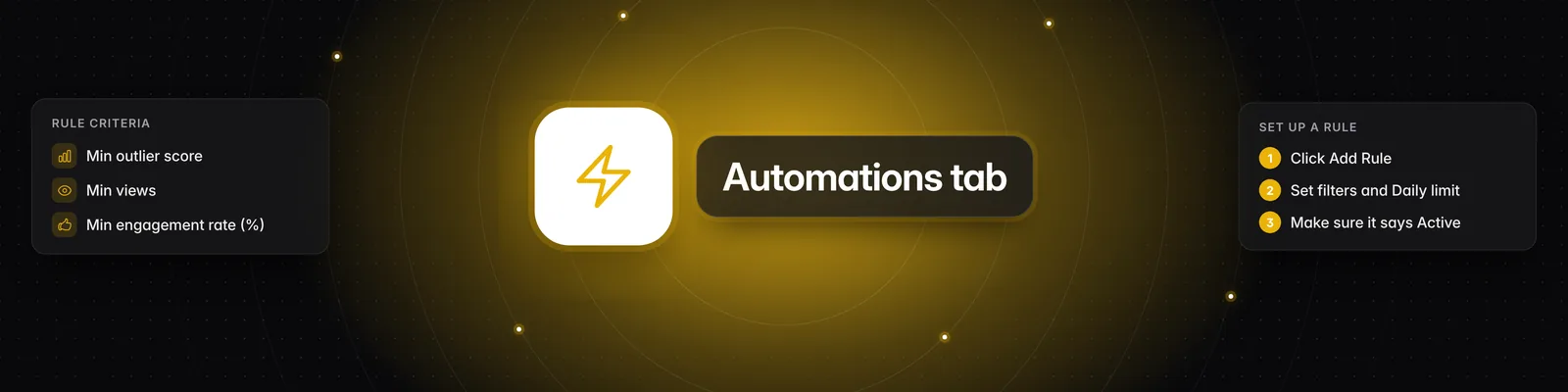
- Click Automations in the left sidebar, under Configure.
- Click Add Rule, or Create your first rule if you don't have any rules yet. A rule called "New rule" appears in the list.
- Click the pencil icon on the rule to open Edit rule.
- Fill in the fields. Leave a filter blank for no minimum.
- Name: A descriptive name, such as "High Engagement Videos".
- Channel: All channels, or one channel from your watchlist.
- Min outlier score: For example, 3 means an outlier score of 3 or higher.
- Min views: For example, 100000 means at least 100,000 views.
- Min engagement rate (%): For example, 2 means 2% or higher.
- Daily limit: The most videos the rule analyzes, and the most credits it uses, each day. The minimum is 1.
- Make sure the toggle says Active.
- Click the checkmark to close the editor.
There's no Save button. Each field saves when you click out of it, and the channel and toggle save right away. If a change can't be saved, you'll see "Save failed" and the field goes back to its saved value.
New rules start switched on, with no filters and a daily limit of 3. Set your filters straight away, or switch the rule off until you're ready.
Pause, edit or delete a rule
- Pause: Click the toggle on the rule. Paused rules appear faded and don't use credits.
- Edit: Click the pencil icon. After you save a change, the rule only picks up videos published from then on.
- Delete: Click the trash icon, then Delete. This can't be undone.
When you run out of credits
If your account runs out of credits, your rules stop analyzing videos and you'll get an email with the subject "Credits have run out and your jobs are impacted" (at most once a week). Rules start again on their own once credits are available. To keep them running, upgrade your plan or buy more credits.
Important notes
- Starter plan: Automations aren't included. If you try to add or change a rule on Starter, you'll see Upgrade required.
- Watchlist only: Rules only check channels on your watchlist. If a rule is set to one channel and you remove that channel from your watchlist, the rule stops finding videos.
- Rule limit: You can have up to 100 rules across all your workspaces.
- Workspaces: Rules belong to the workspace you're in, but all your workspaces share the same credits.
- Guests: Workspace guests can view rules but can't add, change or delete them.
- Claude: You can list your rules in Claude with
/rules. See How to use the /rules tool? (Sandcastles MCP in Claude).
Tips
- Start with a narrow rule (one channel or higher thresholds) and a low daily limit, then adjust.
- Review your rules and the ideas they add from time to time to make sure they still fit your content strategy.
If you have any questions, please reach out to support@sandcastles.ai.