How to use the /rules tool? (Sandcastles MCP in Claude)
Understanding the /rules Command
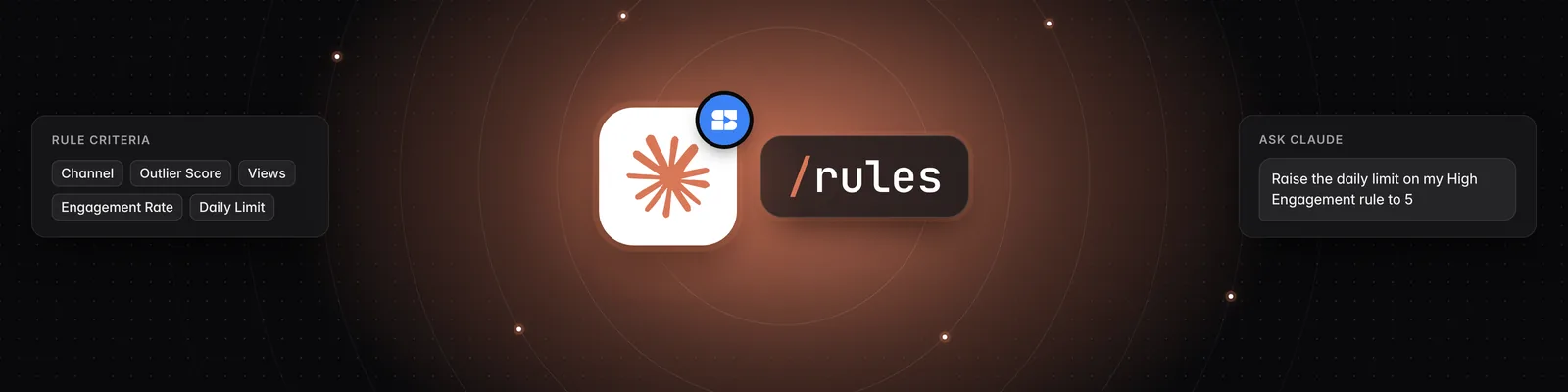
Type /rules in Claude to see the automation rules in your current Sandcastles workspace. You can also ask Claude to create, change or pause a rule right from the chat. Automation rules analyze new videos from your watchlist that meet your filters and add them to your Ideas tab.
What you need
- An active Pro, Visionary or Titan plan. The Sandcastles MCP isn't available on Starter. Without one of these plans, you'll see "Your Sandcastles plan doesn't include MCP access."
- The Sandcastles plugin or connector set up in Claude.
See your rules
- Open a new chat in Claude.
- Type
/rulesand send it. - Review the list. For each rule, Claude shows its name, its channel (or that it covers all your watchlist channels), its filters, its daily limit and whether it's active.
If you don't have any rules yet, Claude tells you and offers to help you create one.
/rules shows the rules in the workspace you're currently in. To see another workspace's rules, ask Claude to switch workspaces first, for example "Switch to my Marketing workspace", then type /rules again.
Create or change a rule from chat
Ask Claude in plain words. For example:
- "Create a rule that analyzes videos from @channel with over 100,000 views."
- "Raise the daily limit on my High Engagement rule to 5."
- "Remove the views filter from my High Engagement rule."
- "Pause my Top Daily Performers rule."
Claude can set the same things you see in the app: name, channel, minimum outlier score, minimum views, minimum engagement rate, daily limit and whether the rule is active.
- A new rule is switched on straight away. If you don't give a daily limit, it's 3.
- A rule can only target a channel that's already on your watchlist. Add the channel first if it isn't.
- If you ask Claude to delete a rule, it switches the rule off instead. The rule stays in your workspace so you can turn it back on later. To remove it for good, use the trash icon on the Automations page.
Manage rules in the app
- Click Automations in the left sidebar, under Configure.
- Click Add Rule (or Create your first rule if you don't have any), or click the pencil icon on an existing rule to open Edit rule.
- Fill in Name, Channel, Min outlier score, Min views, Min engagement rate (%) and Daily limit. Leave a filter blank for no minimum.
- Make sure the toggle says Active.
- Click the checkmark to close the editor.
There's no Save button. Each field saves when you click out of it, and the channel and toggle save right away. For the full walkthrough, see How to use the Automations tab.
How many credits rules use
- Listing, creating, changing and pausing rules from chat is free.
- Each video an active rule analyzes costs 1 credit, up to the rule's daily limit. A daily limit of 3 could use up to about 90 credits over a 30-day billing cycle.
- Rules only analyze videos published after you create or last change them.
See Does using the Sandcastles MCP cost credits? for more detail.
Important notes
- When you set up your watchlist, Sandcastles adds a rule called Top Daily Performers (Sandcastles Default) to your workspace. It's switched off until you turn it on.
- You can have up to 100 rules across all your workspaces. All workspaces share the same credits.
- If you run out of credits, your rules stop analyzing videos until you have credits again.
If you have any questions, please reach out to support@sandcastles.ai.