How to use the Workspaces feature
Understanding Workspaces
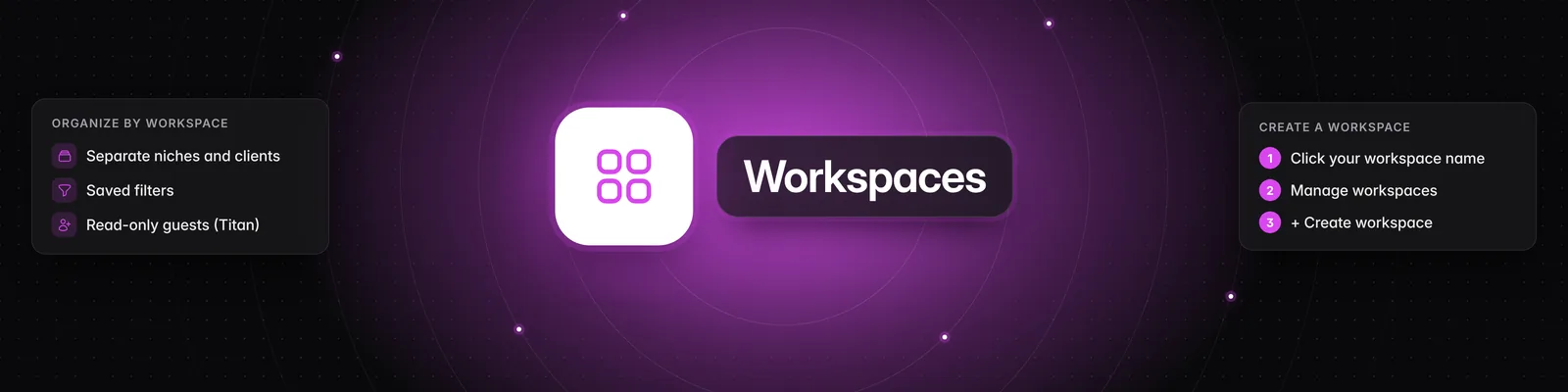
Workspaces keep your research separate for each niche, client or project. Each workspace has its own data, so switching workspaces gives you a clean, focused view.
How many workspaces you can have
| Plan | Starter | Pro | Visionary | Titan |
|---|---|---|---|---|
| Workspaces | 1 | 3 | 5 | 20 |
| Workspace guests | No | No | No | Yes |
- On Starter you can't create more workspaces, so the Create workspace button doesn't appear.
- If you move to a plan with a lower workspace limit, your existing workspaces stay.
- See What are the differences between the Starter, Pro, Visionary, and Titan plans? for everything else in each plan.
What's separate in each workspace
Each workspace has its own:
- Watchlist (see Are there limits to how many channels I can have in my Watchlist?)
- Saved filters (see How do I create a saved filter in the Videos tab?)
- Ideas, Scripts and Projects
- Reports and Automations
- Persona
- Personal analytics setting and verified social accounts (see How to verify your social channels in Sandcastles)
Your credits and your verified accounts limit are shared across all your workspaces.
Switch workspaces
- Click the workspace name at the top of the left sidebar.
- Select the workspace you want. The one you're in has a check mark.
Create a workspace
- Click the workspace name at the top of the left sidebar, then click Manage workspaces.
- Click Create workspace.
- Enter a name and click Create.
Sandcastles switches you to the new workspace. It starts empty, so add channels to its watchlist to get going.
Rename or delete a workspace
- Go to Settings > Workspaces.
- Click the settings icon next to the workspace.
- Change the Name and click Save, or click Delete workspace and confirm.
- You can't delete your last workspace, so Delete workspace only appears when you have more than one.
- Deleting can't be undone. Social accounts verified in that workspace are removed and stop counting toward your verified accounts limit, so you can verify them in another workspace.
Invite a guest (Titan only)
Guests get read-only access to a single workspace.
- Go to Settings > Workspaces and click the settings icon next to the workspace.
- Under Guests, click Add guest.
- Enter the guest's email address and click Invite.
- Click Send invite email to email them the invite, or Copy invite link to share the link yourself.
The guest shows as Pending until they open the invite and sign in, then as Active. The workspace then appears in their workspace switcher.
What guests can see and do
- Guests can view the workspace's content, such as the Dashboard, Videos, Ideas and Reports.
- Guests can't change anything in the workspace, spend credits, export or manage social verification.
- The workspace has a Guest badge in the guest's workspace switcher.
- If your plan no longer includes guest access, your guests see "This workspace is currently disabled" and a note that the workspace owner's plan no longer supports guest access.
Remove a guest or cancel an invite
- Go to Settings > Workspaces and click the settings icon next to the workspace.
- Click the trash icon next to the guest.
- Click Remove guest to confirm.
The workspace disappears from their workspace switcher right away. If the invite was still pending, its link stops working.
Important notes
- Anyone signed in to Sandcastles who opens an invite link can accept it, and each link works once. Only share the link with the person you mean to invite.
- Only the workspace owner can rename or delete a workspace and manage its guests.
Troubleshooting
- "You've reached the maximum number of workspaces for this account." You're at your plan's limit. Delete a workspace you no longer need, or upgrade your plan.
- "You already have a workspace with that name. Please choose a different name." Each workspace needs a unique name.
- "An invite has already been sent to this email." That address already has a pending invite. Remove it and invite them again to get a new link.
- Your guest sees "Invalid or expired invite". The link was already used or the invite was removed. Send a new invite.
If you have any questions, please reach out to support@sandcastles.ai.