How to verify your social channels in Sandcastles
Verifying Your Social Accounts
Verifying proves you own a YouTube, TikTok or Instagram account so Sandcastles can track it in your How to use the Personal Analytics Dashboard. You do it in Settings > Social Verification by adding a short code to your bio.
Before you start
- You need an active subscription. Without one, the Enable personal analytics switch is turned off and you'll see "An active subscription is required to enable personal analytics."
- Only the workspace owner can verify accounts. Guests see "Only workspace owners can manage social verification."
- The account must be public, and you need to be able to edit its bio.
Steps to verify your account
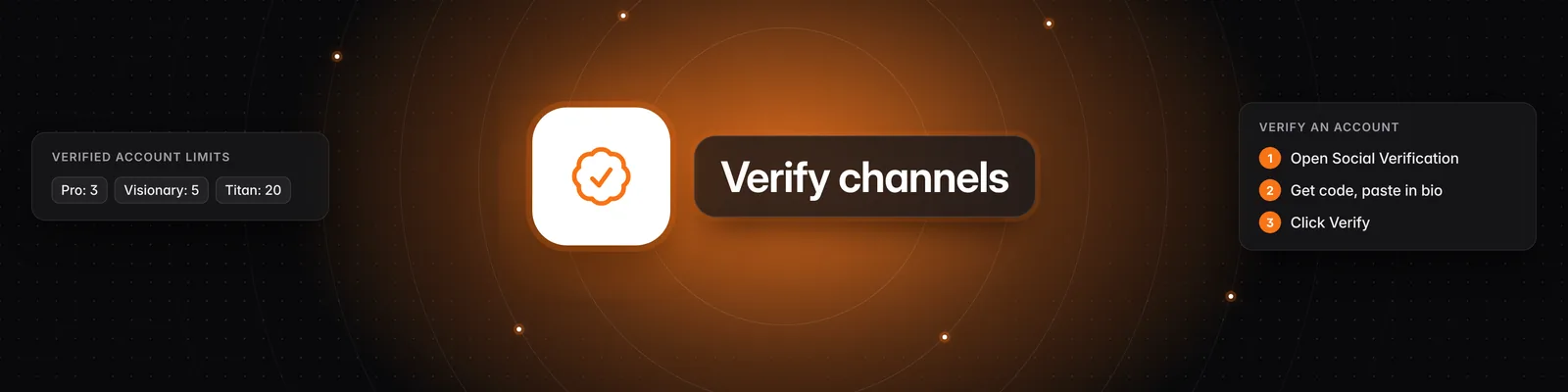
- Click Settings in the left sidebar, then open the Social Verification tab.
- In the Verified social accounts card, use the Workspace dropdown to choose the workspace you want the account in.
- If you see Enable personal analytics, turn it on. Personal analytics is turned on per workspace, and the Add an account section only appears once it's on.
- Under Add an account, choose the platform (YouTube, TikTok or Instagram) and enter your handle.
- Click Get code. Your code starts with
SC-followed by six letters and numbers. It expires after 5 minutes, and the card shows how many minutes are left. - Paste the code anywhere in your bio on that platform and save it. On YouTube, add it to your channel description.
- Return to Sandcastles and click Verify. Sandcastles checks your public profile for the code.
- When you see Account verified, click Done. You can now remove the code from your bio.
The account then appears under Verified accounts with a Verified badge.
How many accounts you can verify
| Plan | Verified accounts |
|---|---|
| Pro | 3 |
| Visionary | 5 |
| Titan | 20 |
- The Starter plan can also verify accounts. Its limit is shown in the badge at the top of the card.
- The badge at the top of the card (for example, "2 of 5 verified") shows how many accounts you've verified and your plan's limit. Your limit is shared across all your workspaces, and the badge counts every workspace. The Verified accounts list only shows the workspace you selected.
- Each social account can only be verified by one Sandcastles account, in one workspace. To move one of your accounts to another workspace, disconnect it first, then verify it again in the new workspace.
- To free up a slot, click Disconnect next to an account. Deleting a workspace also frees every account verified in it (see How to use the Workspaces feature).
- To verify more accounts, upgrade your plan. See What are the differences between the Starter, Pro, Visionary, and Titan plans?
What happens after you verify
- Your dashboard starts pulling in your data. The first analysis can take a few minutes.
- A report named "@yourhandle - Monthly Content Strategy Audit" is added to Reports in that workspace. It's set to run every 30 days but starts paused, with its Active switch off. Turn on Active to run it on schedule, or click Run now. Each run uses credits, shown as Credits Per Run on the report card. Reports aren't included in the Starter plan, so on Starter you'll need to upgrade to a full plan to open or run it. See How to use the Reports tab.
Troubleshooting
-
"Code not found in bio. Add the code to your bio and try again." Check that you saved your bio and the code matches exactly. Platforms can take a moment to show bio changes publicly, so wait a minute and click Verify again. If it still fails, remove the code, save your bio, add the code back, save again and retry. This happens most often on TikTok and can take a couple of tries.
-
"Verification code has expired." Codes last 5 minutes. Click Get code for a new one, replace the old code in your bio, then click Verify.
-
"Invalid verification code." A code only works for the platform, handle and workspace you created it for. If you changed any of these, click Get code again.
-
"Channel could not be found or is not public." Check the spelling of your handle and make sure the account is public.
-
"This account is already verified." Each social account can only be verified by one Sandcastles account, in one workspace. You'll see this message when you click Get code or Verify for an account that's already verified somewhere else, even if you never verified it in the account you're signed in to now.
- If you verified it yourself in another workspace, switch the Workspace dropdown to find it.
- If you verified it earlier from a different Sandcastles account, sign in to that account, go to Settings > Social Verification, choose the workspace in the Workspace dropdown and click Disconnect next to the account. Then sign back in to this account and verify it here.
- If someone else verified it, such as a teammate or editor using their own Sandcastles account, they can disconnect it the same way.
- If you can't access the other account, or can't reach the person who verified it, email support@sandcastles.ai from the email address on your Sandcastles account. Include the platform and handle, and support can release the verification.
-
"This Instagram account has privacy settings or restrictions that prevent us from verifying it. Make sure the account is public and try again." Sandcastles can only verify Instagram accounts it can read publicly. Instagram accounts with an age restriction or another profile restriction can't be verified, even when they're public. Check that:
- The account is set to public.
- The account has no age restriction or other restriction on who can see the profile.
Remove any restriction, then click Verify again. There's no workaround while a restriction is on. If the account is public, has no restrictions and still shows this message, contact support@sandcastles.ai.
-
My verified Instagram account stopped updating or shows as private. If a verified Instagram account is later switched to private or becomes restricted, Sandcastles can no longer track it. Switch it back to public. Age-restricted or otherwise limited accounts can't be tracked, even when they're public.
-
"This Instagram account could not be found. Double-check the handle and try again." Check the spelling of your Instagram handle.
-
"You've reached your limit of 3 verified accounts." The number matches your plan. Disconnect an account or upgrade to verify more. When you're at your limit, Get code is turned off.
-
Too many tries: You can click Verify up to 3 times per minute and 50 times per day. If it keeps failing after several quick tries, wait a minute before trying again.
Important notes
- Turning off personal analytics: Click the switch next to the verified count, then click Turn it off. This hides the dashboard for that workspace. Your insights and analyzed videos stay, you can turn it back on anytime, and your verified accounts still count toward your limit.
- Other settings: For the rest of the Settings page, see What settings can I change in Sandcastles?
If you have any questions, please reach out to support@sandcastles.ai.