How to use the Reports tab
Understanding the Reports Tab
Reports analyze a batch of videos from the channels you choose and turn them into insights you can act on. You can run a report once or put it on a schedule. Each run costs credits.
Which plans include Reports
- Reports are available on the Pro, Visionary and Titan plans.
- Reports aren't available on Starter. If you open Reports on Starter, you'll see Upgrade required. See What are the differences between the Starter, Pro, Visionary, and Titan plans? for plan details.
Accessing Reports
- Click Reports in the left-hand sidebar, under Research.
The Content Strategy Audit
The Content Strategy Audit shows what's working and what isn't across four areas: topics, hooks, formats and scripting tactics. It runs on the channels you select.
Creating a report
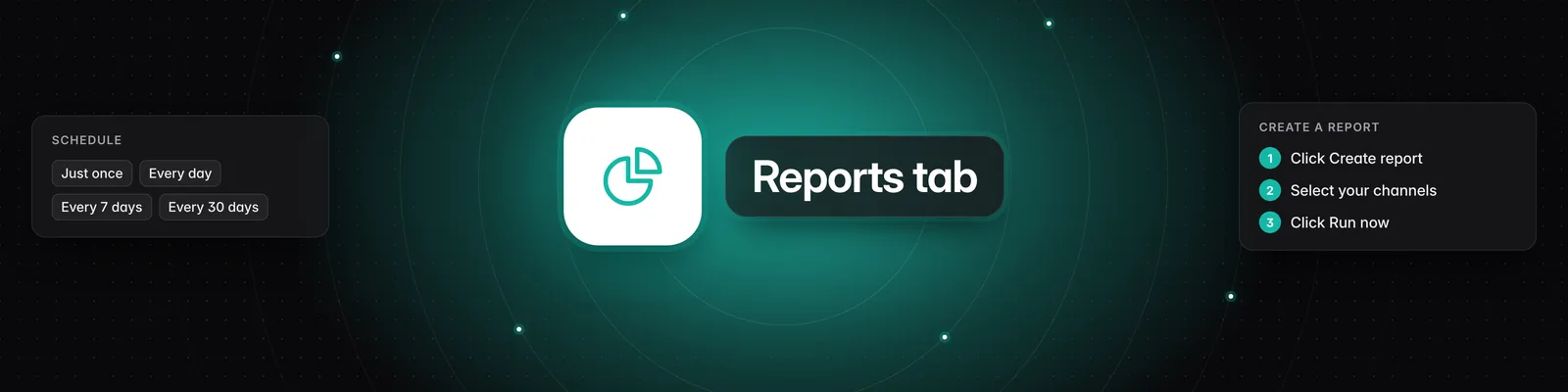
- On the Reports page, click the + icon (Create report) in the top right. If you don't have any reports yet, click Set up your first report.
- In Configure a new report, open Pick a report type... and choose Content Strategy Audit. The box below shows the Base report cost.
- Under Channels, pick the channels to audit. You can choose from your verified channels, your watchlist channels and other channels you've analyzed.
- Click Show optional configs to change these settings:
- Name: a custom name for the report.
- Schedule: Just once, Every day, Every 7 days or Every 30 days.
- Analysis budget: how many videos to analyze. The minimum is 15. The budget is split evenly across the channels you pick.
- Which videos to analyze: Most recent, Most views, Highest engagement or Biggest outliers.
- Lookback period: No limit, Last 7 days, Last 30 days, Last 90 days, Last 180 days or Last 365 days.
- Exclude brand deals: filters out videos with less than 2% engagement.
- Check the cost at the bottom of the window, then click Run now. The report is saved and its first run starts right away.
How many credits a report costs
Each run costs:
- The report's base cost, shown as Base report cost when you pick the report type.
- Plus 1 credit for each new video the report analyzes, up to your Analysis budget. Videos you've already analyzed in this workspace don't cost credits again.
Before you run, the bottom of the window shows the most a run can cost ("Cost: up to … credits", followed by how often it repeats, such as "every 7d"). Hover the info icon to see "Max total cost, including video analysis and report generation." The actual cost may be lower if the full budget isn't used. Credits Per Run on each report card shows the same maximum.
After a run, open the report and hover Cost to see how much went to the report and how much to newly analyzed videos.
If a run fails, the base cost is refunded automatically. Videos analyzed during that run stay analyzed, so the next run won't charge you for them again. See How does the credit system work? for more on credits.
Report cards
Each card on the Reports page shows:
- Schedule: how often the report runs, or Just once.
- Last Executed: the date of the last run.
- Credits Per Run: the most one run can cost.
- Active: turns the schedule on or off. It only works for reports with a recurring schedule.
- Run now: runs the report right away, even if Active is off or the report is set to Just once. While a run is in progress, the button shows Queued... or Generating....
- Gear icon: opens Update report, where you can change the settings and click Save, or click Delete report.
Click anywhere else on the card to open the report.
Viewing, exporting and sharing a report
On the report page you can:
- Use the Generated menu to switch between past runs.
- Click Run report (play icon) to start another run.
- Click Export to download the report as a JSON file.
- Click Email to send a copy of the report to any email address.
- Click Continue with MCP to copy a prompt that pulls this report into your AI agent through the Sandcastles MCP.
- Click Edit report (gear icon) to change the report's settings.
Scheduled reports and emails
- A scheduled report runs automatically every day, every 7 days or every 30 days while Active is on.
- When Active is off, the report doesn't run on its schedule. You can still run it any time with Run now.
- When a report finishes, you get an email titled "Your report is ready", followed by the report's name. To stop these emails, go to Settings > Feature Flags and turn off Enable emails for reports. You can still send a report yourself with Email.
- The latest Content Strategy Audit for one of your verified channels also appears on your Dashboard. See How to use the Personal Analytics Dashboard.
Reports created when you verify a channel
When you verify a social account, Sandcastles creates a report called @yourhandle - Monthly Content Strategy Audit. It's set to run every 30 days on your most recent videos, with an analysis budget of 15. It starts paused, so it won't run on its schedule until you turn on Active. You can still run it any time with Run now, and each run costs credits. See How to verify your social channels in Sandcastles.
Troubleshooting
If a run fails, open the report to see the reason under Failed to generate report. Here are the most common messages, including ones you might see when you start a run:
- "Report already queued. Cannot queue another run until the current one is complete." or "Report is already queued for execution." Each report can only have one run at a time. Wait for the current run to finish.
- Out of credits. You don't have enough credits for the report's base cost, so the run didn't start. Buy credits or upgrade your plan, then run it again.
- "Cannot analyze videos for this report - out of credits. Please add more credits or upgrade your plan." You ran out of credits before any videos could be analyzed. If credits run out partway through, the report uses the videos analyzed so far.
- "Cannot generate report - budget is too low…". The budget is split across your channels, so it has to cover at least one video per channel. Increase the Analysis budget or pick fewer channels.
- "Cannot generate report - no videos to analyze for…". No videos matched your settings. Try a longer Lookback period or turn off Exclude brand deals.
- Email: "Failed to generate report - out of credits". A scheduled report was due, but you didn't have enough credits for its base cost, so it didn't run. It runs again once you have enough credits.
- Report is taking a while. New videos have to be analyzed first. The report page shows Generating report... until it's ready. You can close the page. Unless you've turned report emails off, you'll get an email when it's ready.
If you have any questions, please reach out to support@sandcastles.ai.