How to use the Hooks tab in Sandcastles
Understanding the Hooks Tab
The Hooks tab is where you manage your vault of viral hooks. Sandcastles pulls a hook format from every video you analyze, and the hooks you favorite are prioritized when Sandcastles writes hooks for your scripts.
Which plans include Hooks
- The Hooks tab is included on every plan, including Starter. You need an active plan to use it.
- Exporting hooks is only available on Pro, Visionary and Titan.
Accessing Hooks
- Click Hooks in the left-hand sidebar, under Research.
The three sections
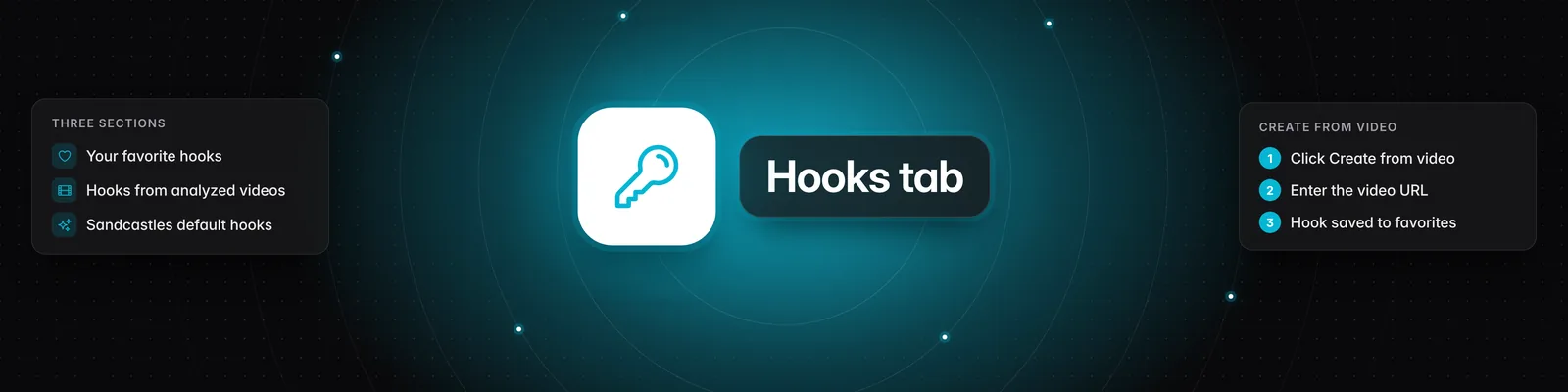
- Your Favorite Hooks: hooks you've added to your favorites. This section only appears once you have at least one.
- Hooks from Your Analyzed Videos: hooks from the videos you've analyzed in this workspace that aren't in your favorites yet. If you haven't analyzed any videos, click Explore feed to find some.
- Sandcastles Default Hooks: a set of proven hooks from Sandcastles. You can copy and export these, but you can't add them to your favorites.
Each section heading shows how many hooks it contains.
What each hook shows
- The hook: shown as a format with bracketed placeholders, or as the original spoken hook (see below).
- Inspired by: the channel the hook came from.
- Category: the type of hook. The categories are Authority, Case Study, Comparison, Contrarian, List, Personal Experience, Problem, Question, Ranking Rating, Scenario Hypothetical, Secret Reveal Breakdown, Trap Mistake and Tutorial.
- Outlier score: how many times the channel's usual views the video got, for example 3x. It's green at 1x or above and red below 1x.
- Views: the video's view count.
Click a hook to open its video on the Video Detail Page. See How to use the Video Detail Page in Sandcastles.
Adding hooks to your favorites
- Find the hook in Hooks from Your Analyzed Videos.
- Click the heart icon (Add to favorites) on the right of the hook. The hook moves to Your Favorite Hooks.
To remove a favorite, click the heart again (Remove from favorites). The hook moves back to Hooks from Your Analyzed Videos.
You can also save a hook from the Video Detail Page: click Save hook format or press H. The button changes to Hook format saved.
Searching, filtering and sorting
The toolbar at the top of the page has a search box and a row of icon buttons. Hover over a button to see its name.
- Search by hook or channel: type a hook's words or a channel handle.
- Click to show original / Click to show format: switches every hook between its format with bracketed placeholders (the default) and the original words from the video. When the button is blue, you're seeing formats.
- Filter by category: shows only one hook category. Choose Clear filter to show all again.
- Sort by: Saved date, Published date, Views, Outlier score or Channel.
Copying a hook
- Hover over a hook.
- Click Copy hook. It changes to Copied for a moment.
You copy the version you're viewing, either the format or the original. Copy hook only appears on larger screens.
Creating a hook from a video
Found a viral hook outside Sandcastles? You can save it straight to your favorites.
- Click the Create from video button (film icon) in the toolbar.
- In Add a hook from a video URL, paste the video's URL into Enter a video URL. YouTube Shorts, Instagram and TikTok are supported.
- Click Save hook. You'll see "Hook saved" and "We're analyzing the video — it'll appear here when done."
The video is analyzed like any other video, which costs 1 credit, and it's also added to your Ideas Inbox. Its hook appears in Your Favorite Hooks once the analysis is done. See How does the credit system work?
Short TikTok links (vm.tiktok.com or vt.tiktok.com) aren't supported. Use the full video URL, such as https://www.tiktok.com/@username/video/1234567890.
Exporting hooks
- Click the Export button (cloud icon) in the toolbar.
- In Start an export, choose JSON or CSV under Format.
- Click Start export. When it's ready, you'll see "Your export is ready! Download it now." Click Download, or find it later in Exports in the sidebar.
- The export includes the hooks from all three sections, up to 500, and respects your current search.
- Each row includes the hook format, the hook category, the published date, the channel, the original hook, the views and whether it's a Sandcastles default hook.
- On Starter, the window shows "Exports are only available to paid subscribers of the Pro tier or higher." See What are the differences between the Starter, Pro, Visionary, and Titan plans?
Using hooks in your scripts
When you write a script, Sandcastles prioritizes your favorite hooks. In the script flow, Generate more hooks lets you pick from your favorites, your analyzed videos and Sandcastles' global hooks. See How to use the Scripts tab and How to determine which hook formats get used in the Sandcastles script flow.
Important notes
- Workspace guests have read-only access. Guests can search, filter, sort and copy hooks, but can't add favorites, create hooks from videos or export. See How to use the Workspaces feature.
- Hooks are per workspace. Your favorites and analyzed hooks only show in the workspace where you analyzed or saved them.
- "Error fetching hooks. Please try refreshing the page." Refresh the page. If it keeps happening, check that you have an active plan.
If you have any questions, please reach out to support@sandcastles.ai.