What settings can I change in Sandcastles?
Navigating the Settings Page
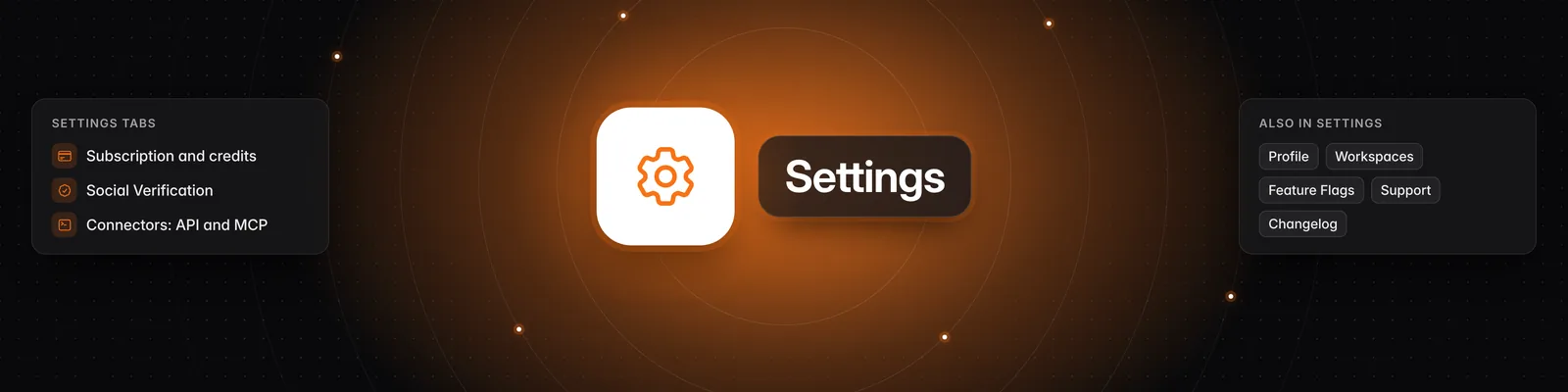
The Settings page is where you manage your plan and credits, your profile, verified social accounts, workspaces, email notifications, and the API and MCP. To open it, click Settings in the left-hand sidebar.
Settings has these tabs:
- Subscription
- Profile
- Social Verification
- Workspaces
- Feature Flags
- Connectors (shown once you have an active plan)
On a phone, pick the tab from the dropdown at the top of the page.
Subscription
At the top you'll see the credits remaining in your account. Below that:
- ID: your subscription ID.
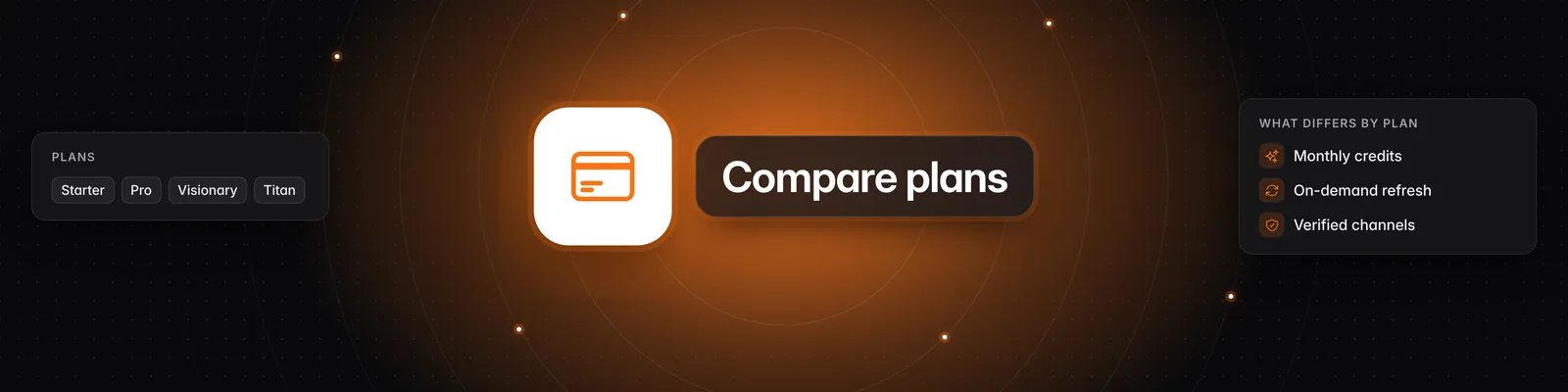
- Tier: your plan (Starter, Pro, Visionary or Titan).
- Status: the state of your subscription. If you've cancelled and keep access until the end of your billing period, it shows "(cancelling at period end)".
- Credit reset date: when your monthly credits reset.
- Interval: how often you're billed (monthly or yearly).
- Next billing date: when you'll be charged next. It shows a dash once your subscription is set to cancel.
You'll also find these buttons:
- Upgrade plan: opens the list of plans. To compare them, see What are the differences between the Starter, Pro, Visionary, and Titan plans?.
- Buy additional credits: buy extra credits while you have an active Pro, Visionary or Titan subscription. On Starter, this button asks you to upgrade to a full plan first. See How do I buy more credits?.
- Manage subscription > Billing portal: "Update your payment method, or cancel your subscription."
- Manage subscription > Cancel subscription: cancel your plan. On Starter, this button reads Cancel and refund subscription.
If your subscription has been cancelled, a Renew Subscription button appears. If you don't have a plan yet, you'll see Choose a plan instead.
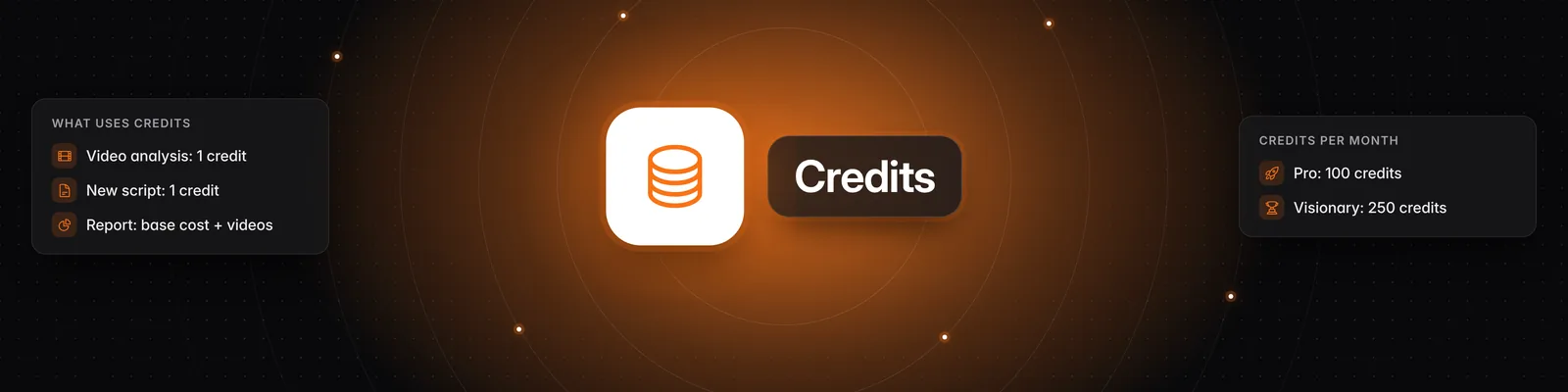
Credit Usage History shows the credits you've spent since your current billing period started, split into Video Analysis, Script and Report. The Video Analysis Breakdown below it shows how many videos you've analyzed from each channel. Credits are spent per action, such as a deep video analysis, a new script or a Report. See How does the credit system work? for details.
Profile
- Edit your First Name and Last Name, then click Save.
- Your Email is shown here, but it can't be changed in the app.
Social Verification
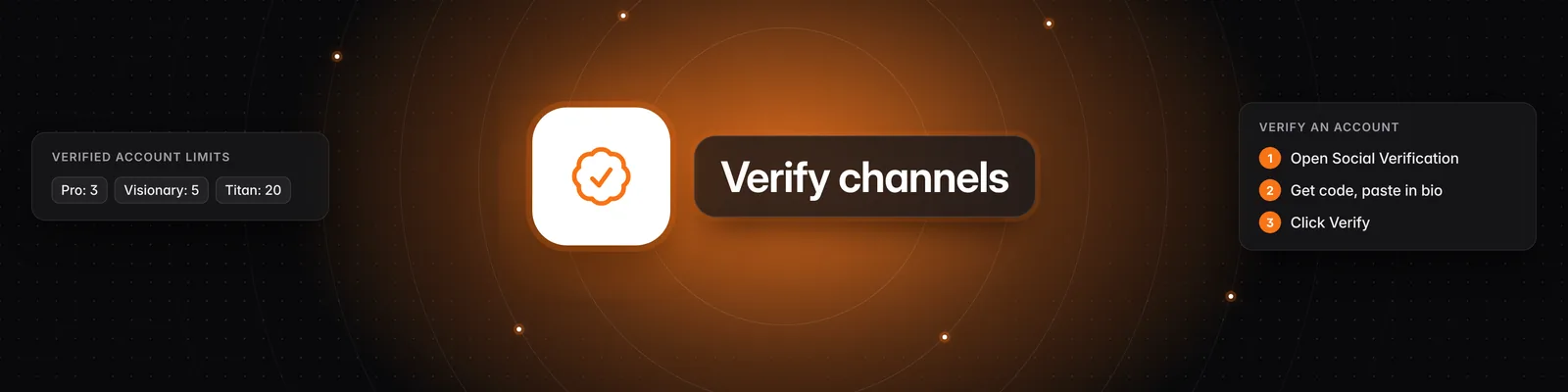
Under Verified social accounts, you prove that you own your Instagram, TikTok or YouTube accounts by adding a code to the account's bio. Verified accounts power your personal analytics on the Dashboard.
- The badge shows how many accounts you've verified out of your plan's limit. The limit is shared across all your workspaces.
- Use the Workspace dropdown to choose which workspace you're verifying accounts in.
- Turn on Enable personal analytics to switch on the personal analytics dashboard for that workspace. This needs an active subscription.
- Only workspace owners can manage social verification.
For step-by-step instructions, see How to verify your social channels in Sandcastles.
Workspaces
Workspaces keep your channels, scripts, ideas and videos separate, for example by client or niche.
- Each workspace shows its number of channels and members. The one you're in is marked Active.
- Click Create workspace to add a new one. This isn't available on Starter.
- Click the settings icon next to a workspace to rename it, add guests (Titan plan only) or click Delete workspace. You can only delete a workspace if you have more than one.
- Workspaces you've been invited to appear under Guest Access and are read-only.
You can also get here from the workspace dropdown at the top left: Manage workspaces. Learn more in How to use the Workspaces feature.
Feature Flags
These toggles control your email notifications:
- Enable emails for exports: get an email when your export is ready.
- Enable emails for channel adds: get an email when a new channel that you added is ready.
- Enable emails for reports: get an email for every report that is generated.
Connectors
This tab appears once you have an active plan. It has two sections:
- API: click Generate API key to connect Sandcastles research data to your own tools. API access requires the Titan plan. Once you have a key, you can Download code sample (Python, Node.js or Bash), Regenerate or Delete the key, or View documentation. See How to use the Sandcastles API.
- MCP: use Sandcastles inside chatbots like Claude and ChatGPT. Hover over the MCP URL (
https://mcp.sandcastles.ai/) and click Copy to copy it. Under Install from Marketplace, click Claude to open Sandcastles in the Claude directory, or ChatGPT or Codex to open the Sandcastles plugin in the ChatGPT plugin directory. Grok Bot and Cursor are marked Coming soon. Under Setup Guides, click the button for your assistant (Claude, ChatGPT, Codex, Grok, Meta Muse, Hermes, Perplexity, OpenClaw, Antigravity, Grok Bot, Gemini, Replit or Cursor) to open its setup guide. Manual setup opens How to set up the Sandcastles MCP in any AI assistant. The MCP requires the Pro, Visionary or Titan plan. See How to set up the Sandcastles MCP in Claude.
Other options on the Settings page
- App Version: the badge at the top shows which version of Sandcastles you're using.
- Support: opens the Sandcastles help center in a new tab.
- Changelog: shows recent updates to Sandcastles.
- Sign out: signs you out of your account.
If you have any questions, please reach out to support@sandcastles.ai.