How to set up the Sandcastles MCP in Claude
Connecting Sandcastles to Claude
The quickest way to connect Sandcastles to Claude is to add it from the Claude directory and sign in with your Sandcastles account. Once it's connected, you can ask Claude to analyze videos, find channels and research what's working in your niche, using your Sandcastles data.
Before you start
- You need an active Sandcastles Pro, Visionary or Titan plan. The MCP isn't available on the Starter plan.
- The Sandcastles MCP server URL is
https://mcp.sandcastles.ai/. You only need it for manual setup. You can also copy it in Sandcastles from Settings > Connectors: in the MCP card, hover over the URL and click Copy.
Option 1 (recommended): Add Sandcastles from the Claude directory
This works in Claude on the web, desktop and mobile, and in Claude Cowork.
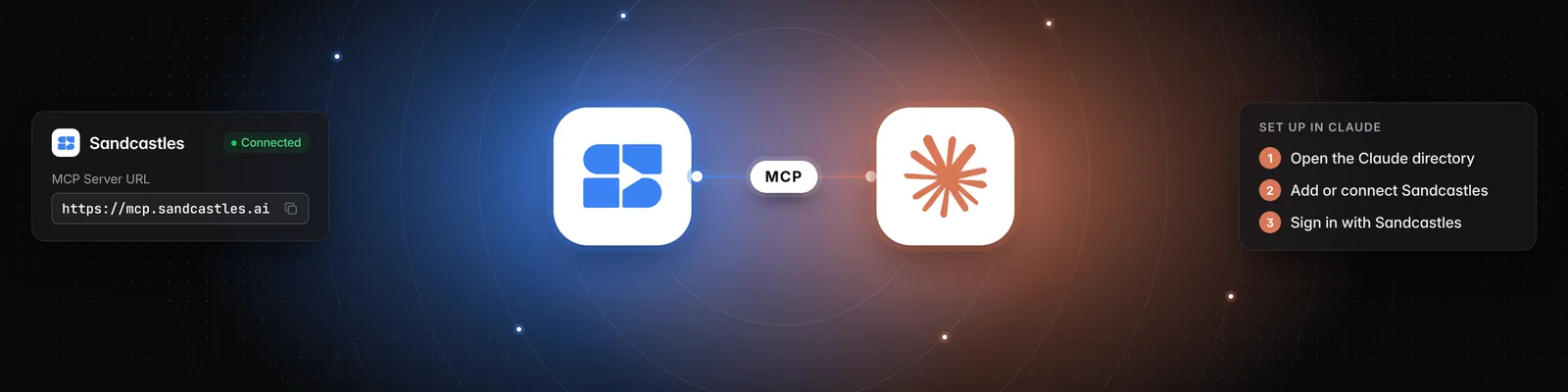
- Open claude.ai/directory/sandcastles. You can also get there from Sandcastles: go to Settings > Connectors and, in the MCP card, click Install from Marketplace > Claude.
- Add or connect Sandcastles.
- Sign in with your Sandcastles account when asked, and approve access.
Option 2: Connect Sandcastles in Claude Code
Use the connector you already added. If you're signed in to Claude Code with your Claude account, connectors you add in Claude, including Sandcastles from the directory, are available in Claude Code too. Run /mcp in Claude Code to check that Sandcastles is listed.
Or install the Sandcastles plugin. The plugin connects Sandcastles and also adds the Sandcastles slash commands, such as /analyze and /channels-recap.
-
In Claude Code, add the Sandcastles plugin marketplace:
/plugin marketplace add sandcastles-ai/plugins -
Install the plugin:
/plugin install sandcastles@sandcastles -
Sign in with your Sandcastles account when prompted. If you aren't prompted, run
/mcp, choose Sandcastles and sign in.
Option 3: Manual setup (if the directory doesn't work for you)
In Claude:
- Go to Settings > Connectors and click Add custom connector.
- Enter
Sandcastlesas the name. - Enter
https://mcp.sandcastles.ai/as the URL. - Click Add.
- Click Connect and sign in with your Sandcastles account.
In Claude Code:
-
Run this command in your terminal:
claude mcp add --transport http sandcastles https://mcp.sandcastles.ai/ -
In Claude Code, run
/mcp, choose Sandcastles and sign in with your Sandcastles account.
Using Sandcastles in Claude
Once connected, just ask Claude in plain words. You can:
- Analyze videos: Paste a TikTok, Instagram or YouTube Shorts link for a deep analysis.
- Discover channels: Find new channels and topics in your niche.
- Search across platforms: Look for keywords across TikTok, Instagram and YouTube Shorts.
- Study competitors: See what's working for the channels in your watchlist.
For example:
Use Sandcastles to pull the top 20 performing videos from creatorhandle on Instagram and break down their topics, formats and hooks.
Claude works in your current Sandcastles workspace, and you can ask it to list or switch workspaces. Analyzing a video that isn't in your current workspace yet uses 1 credit. See Does using the Sandcastles MCP cost credits? for what's free.
Troubleshooting
- "Your Sandcastles plan doesn't include MCP access." You don't have an active Pro, Visionary or Titan plan. Upgrade, then try again.
- "You don't have enough credits to perform this action." You're out of credits for analyzing new videos. You can buy more in Settings > Subscription > Buy additional credits.
- The MCP card shows a See plans button instead of the URL: you're on the Starter plan. Upgrade to Pro or higher to use the MCP.
- You don't see the Connectors tab in Sandcastles: this tab only appears once you have an active plan.
- The directory doesn't work for you: use the manual setup in Option 3.
Related articles
- How to set up the Sandcastles MCP in any AI assistant
- How to update the Sandcastles MCP plugin in Claude
- How to set up the Sandcastles MCP in ChatGPT
- Does using the Sandcastles MCP cost credits?
If you have any questions, please reach out to support@sandcastles.ai.