How do I create a saved filter in the Videos tab?
Creating and applying saved filters
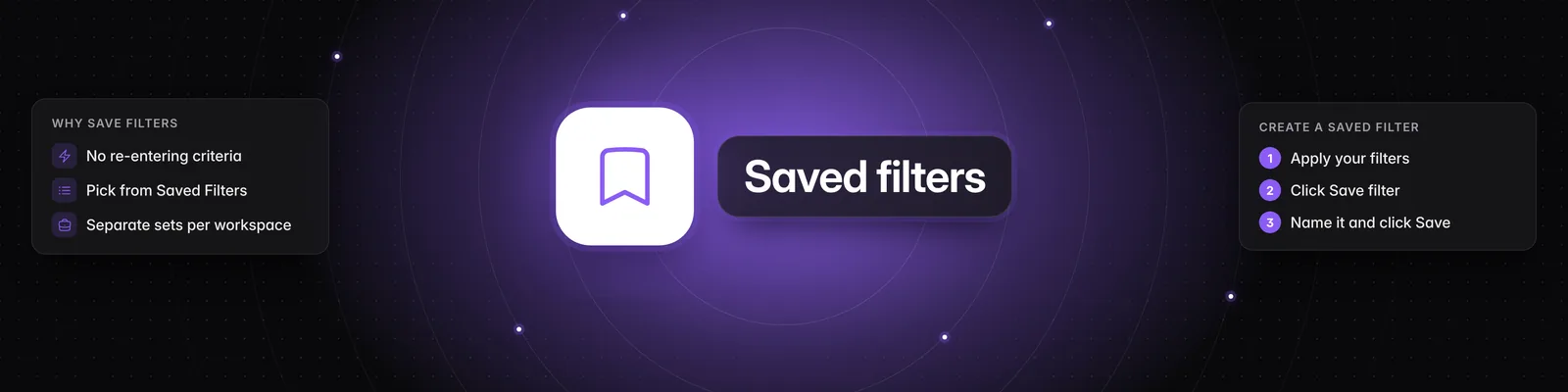
A saved filter stores a set of filters in the Videos tab so you can apply them again in one click. It's useful when you often look at the same channels, outlier scores or time frames. To learn what each filter does, see How do I use the filter settings in the Videos tab?.
How to create a saved filter
- Go to Videos in the left sidebar.
- Set your filters in the Filters panel, for example Channels, Keywords, Outlier score, Views, Engagement, Posted in last or Platform. Save filter stays greyed out until you set at least one filter.
- Click Save filter at the bottom of the Filters panel.
- Enter a name, for example "High Engagement - Last 6 Months".
- Click Save.
A saved filter also remembers your Browsing mode (Your personalized feed or Your analyzed library) and the Include analyzed switch.
How to apply a saved filter
- Go to Videos.
- Open Saved Filters at the top of the Filters panel. It only appears once you have a saved filter.
- Pick the filter you want.
Your results update straight away. Click Clear at the top of the panel to reset your filters.
How to update or delete a saved filter
- Update: Change your filters, click Save filter and save with the same name. Using the name of an existing saved filter overwrites it.
- Delete: Apply the saved filter, click the trash icon next to Save filter, then click Delete. This can't be undone.
Saved filters and workspaces
Each workspace has its own saved filters, so you can keep different filter sets for each client or niche. To switch workspaces, click the workspace name at the top of the left sidebar. See How to use the Workspaces feature.
Important notes
- Starter plan: Saved filters aren't available on Starter. If you try to save or delete one, you'll be asked to upgrade.
- Global Sandcastles: Saved Filters and Save filter are hidden in this browsing mode. Switch to Your personalized feed or Your analyzed library to use them.
- Workspace guests can't save or delete filters.
If you have any questions, please reach out to support@sandcastles.ai.