How do I use the filter settings in the Videos tab?
Using the filters in the Videos tab
The Filters panel on the left of the Videos tab narrows down which videos you see, and Sort by changes their order. You can combine filters and save them for later. For an overview of the whole tab, see How to use the Videos tab.
Opening filters and sorting
- The Filters panel is open on the left by default. Click the funnel icon (Filters) at the top of the page to show or hide it. On mobile, the funnel icon opens the filters in a pop-up.
- Click the arrows icon (Sort by) at the top of the page to change the order:
- Saved recently: your most recently analyzed videos first.
- Newest: most recently posted first. This is the default.
- Oldest: earliest posted first.
- Outlier score: highest outlier score first.
- Views: most views first.
- Engagement rate: highest engagement rate first.
- Saved recently and Oldest aren't available in Global Sandcastles.
What each filter does
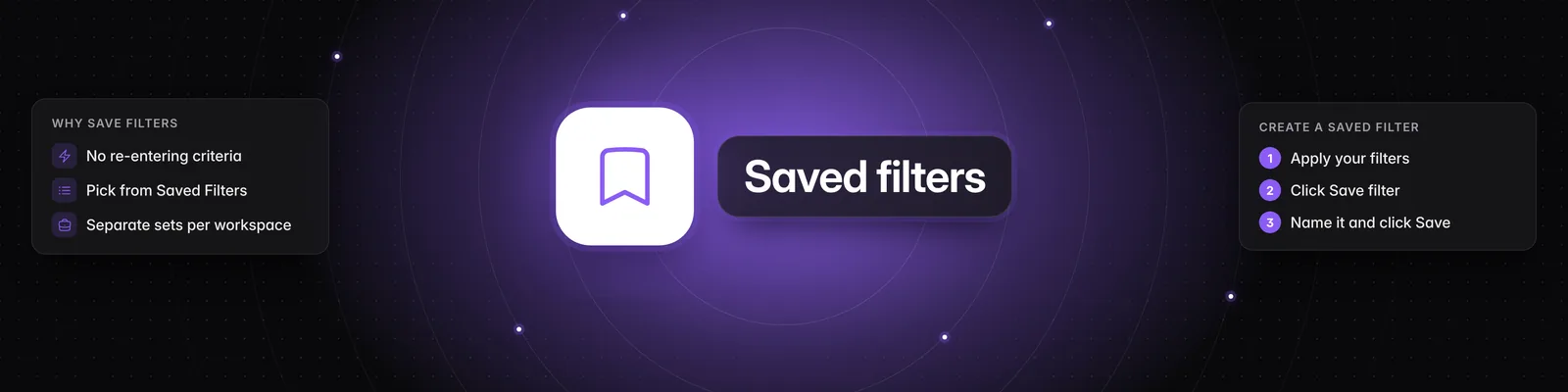
- Saved Filters: apply a set of filters you've saved. This only appears once you have a saved filter.
- Channels: pick one or more channels, or leave it on All channels. The list is grouped into Your verified channels, Your watchlist channels and Other channels you've analyzed.
- Keywords: search video captions and titles for a word or phrase.
- Outlier score: set a minimum, a maximum or both. The outlier score is a video's views divided by the median views of that channel's videos posted in the 90 days up to that video. A score of 3x means the video got three times the channel's usual views.
- Views: set a minimum and maximum view count.
- Engagement: set a minimum and maximum engagement rate, as a percentage. Engagement rate is likes plus comments, divided by views.
- Posted in last: enter a number and choose Days, Weeks, Months or Years.
- Platform: choose YouTube, TikTok, Instagram or any combination. YouTube means YouTube Shorts. Sandcastles doesn't import long-form YouTube videos.
- Browsing mode: choose which set of videos to search. See below.
To reset your filters, click Clear at the top of the panel.
Browsing mode
Browsing mode has three icons. Hover over each one to see its name.
- Global Sandcastles (left): searches every video in Sandcastles, not just your channels. Channels, Saved Filters and Save filter are hidden in this mode. See How to use the global search feed in the Videos tab.
- Your personalized feed (middle): videos from your channels, plus other videos you've analyzed. This is the default.
- Your analyzed library (right): only videos you've analyzed.
- Include analyzed: the switch below the icons. It only works in Your personalized feed. Turn it off to hide videos you've already analyzed.
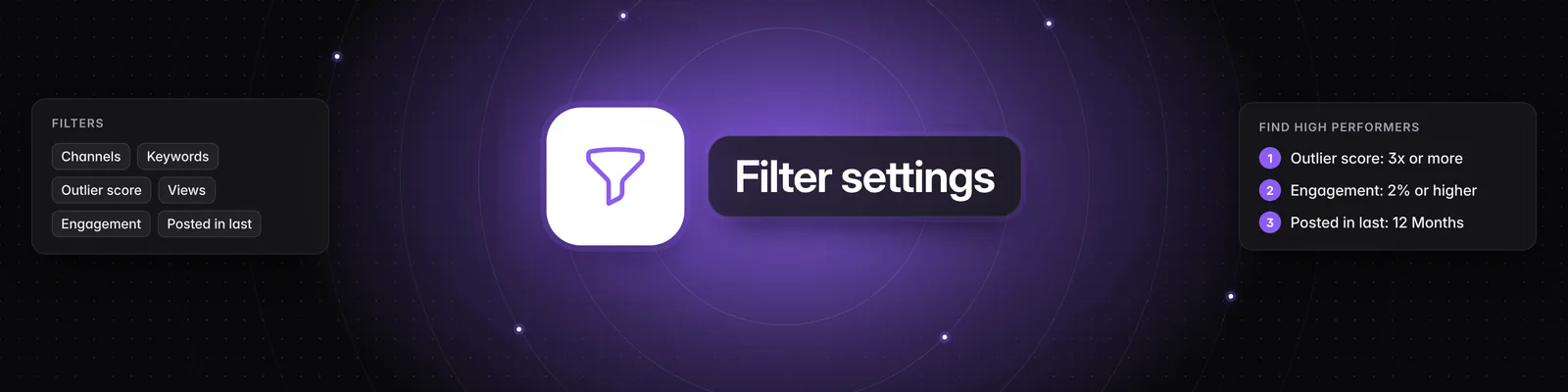
Finding high performers
- Under Browsing mode, click Your personalized feed to search your channels, or Global Sandcastles to search beyond them.
- Enter a minimum Outlier score, for example 3, to show videos with at least three times their channel's usual views.
- Enter a minimum Engagement of 2. An engagement rate of 2% or higher often points to organic performance.
- Set Posted in last to a time frame that suits your niche, for example 12 Months for evergreen content.
- Click Sort by > Outlier score to see the biggest outliers first.
Seeing only videos you haven't analyzed
- Under Browsing mode, click the middle icon, Your personalized feed.
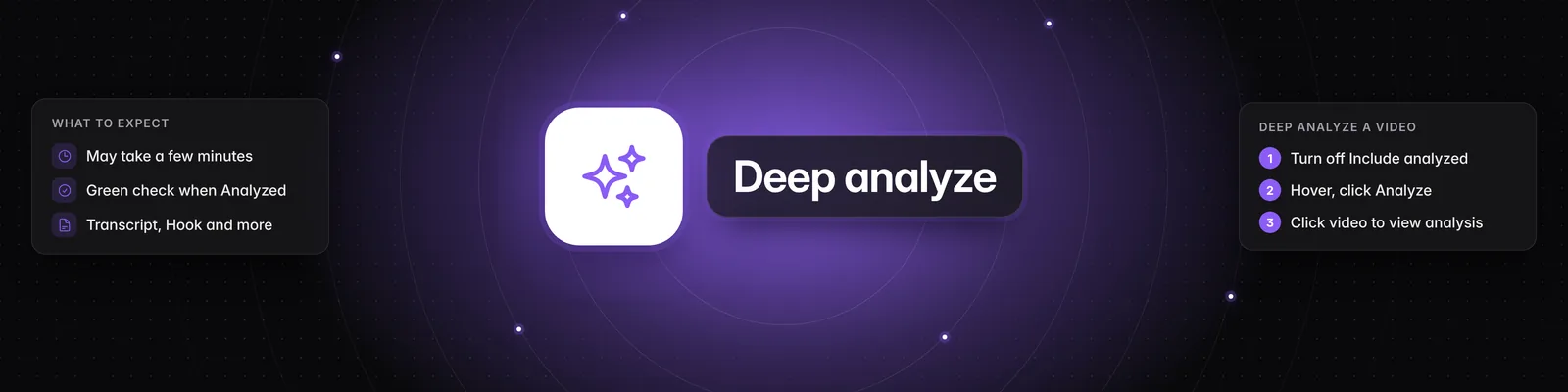
- Turn off Include analyzed.
To see only videos you've analyzed, click the icon on the right, Your analyzed library. To analyze a video, see How do I deep analyze a video in the Videos tab?.
Saving filters
- Set at least one filter. Save filter stays greyed out until you do.
- Click Save filter at the bottom of the Filters panel.
- Enter a name and click Save. Using the name of an existing saved filter overwrites it.
To apply it later, pick it from Saved Filters at the top of the panel. To delete the saved filter that's applied, click the trash icon next to Save filter, then click Delete. For more, see How do I create a saved filter in the Videos tab?.
Important notes
- Starter plan: Saved filters and Global Sandcastles aren't available on Starter.
- Include analyzed can only be changed in Your personalized feed. It's greyed out in the other two modes.
If you have any questions, please reach out to support@sandcastles.ai.