How to use the global search feed in the Videos tab
Searching all of Sandcastles
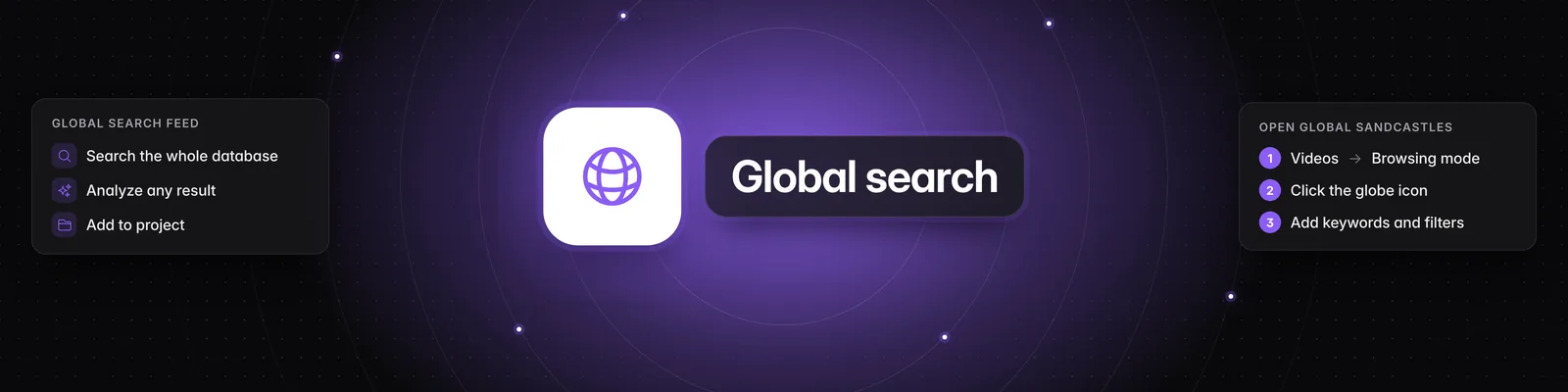
Global Sandcastles mode in the Videos tab searches short-form videos from across Sandcastles, not just the channels in your Watchlist. It's available on Pro, Visionary and Titan.
Switch to Global Sandcastles
- Click Videos in the left sidebar.
- Find Browsing mode in the Filters panel on the left.
- If you don't see the Filters panel, click the funnel icon (Filters) at the top of the page.
- Click the globe icon on the left, Global Sandcastles. Hover over each icon to see its name.
The feed now shows YouTube Shorts, TikTok and Instagram videos from across Sandcastles, including creators you don't follow.
Filter and sort your results
These filters work in Global Sandcastles mode:
- Keywords: search captions and titles, for example "ice cream".
- Outlier score: set a range, for example 5x and up, to find standout videos.
- Views: set a minimum and maximum view count.
- Engagement: set a minimum and maximum engagement rate.
- Posted in last: enter a number and choose Days, Weeks, Months or Years.
- Platform: choose YouTube, TikTok, Instagram or a mix.
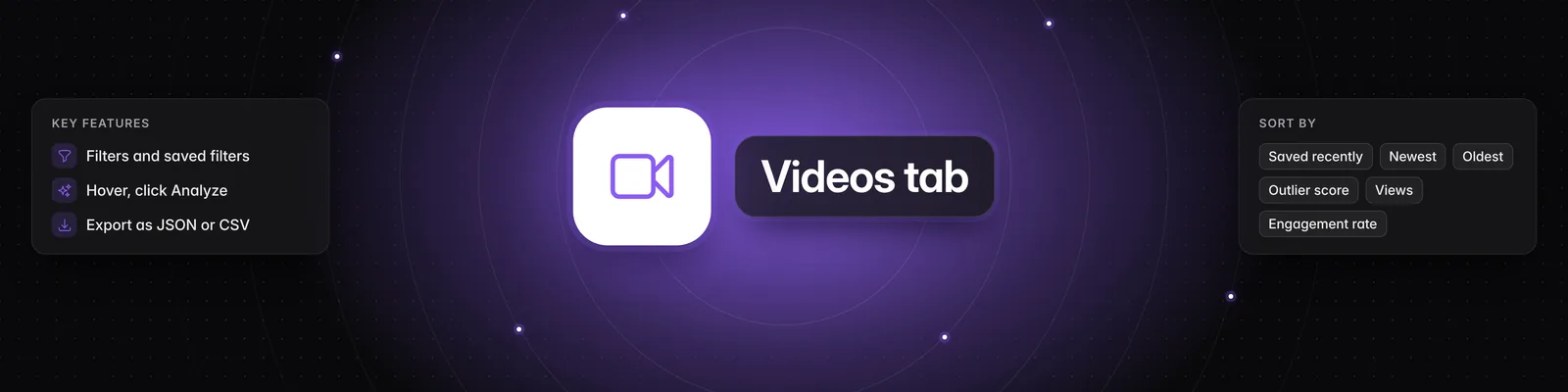
To sort, click the Sort by icon at the top of the page and choose Newest, Outlier score, Views or Engagement rate. Click Load more at the bottom of the page to see more results.
The Channels filter, saved filters and the Include analyzed switch aren't available in this mode. Results include videos you've already analyzed, marked Analyzed, and ones you haven't.
Work with a video
Hover over a video to see its actions:
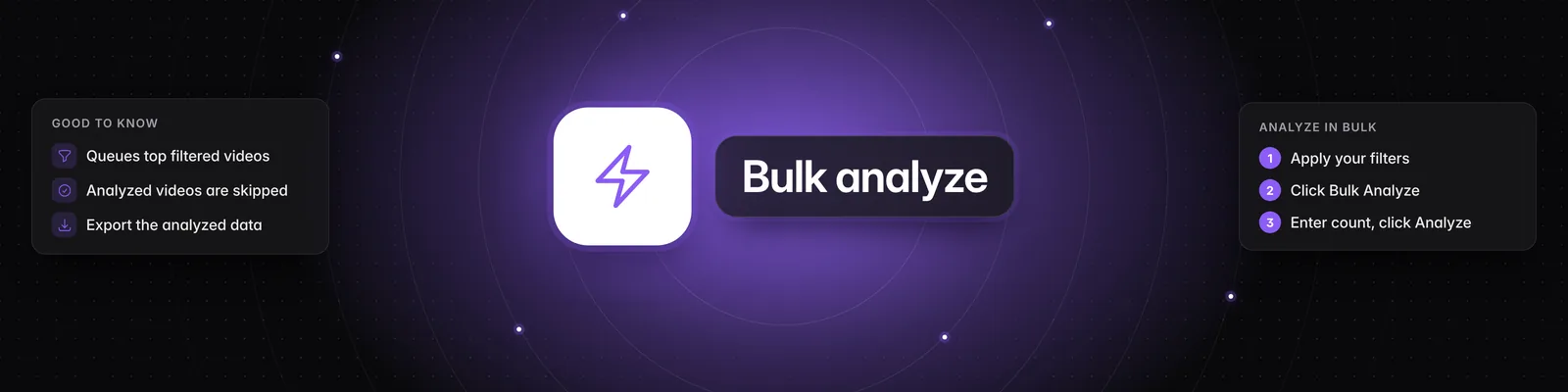
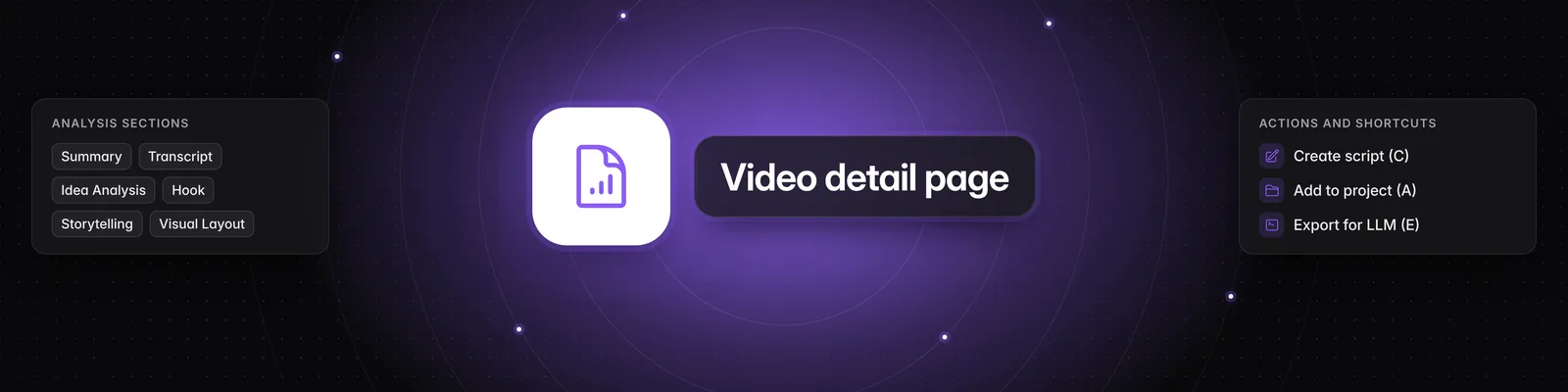
- Analyze: starts a deep analysis, which uses 1 credit like any other analysis. The card shows Queued, then Analyzing with an amber progress bar. When it's done, the card shows a green Analyzed label. Click the video to open its analysis. It's also added to Ideas > Inbox.
- Play in new tab (play icon): opens the video on TikTok, YouTube or Instagram.
- Add to project (folder icon): choose a project or Create a new project, then click Add. This doesn't use credits.
For more on analysis, see How do I deep analyze a video in the Videos tab?.
Add a creator to your Watchlist
- Click the creator's @handle under a video.
- Click Add to watchlist.
You'll then see that creator's videos in your personalized feed.
Export your results
- Click the Export icon (the cloud with a down arrow) at the top of the page.
- Choose JSON or CSV under Format.
- Under Items, enter how many videos to include, up to 500. The top videos in your current sort are exported.
- Click Start export.
Only the videos already loaded on the page are exported, so click Load more first if you need more. Exports are available on Pro, Visionary and Titan. See What information can you export from the Videos tab?.
Go back to your own feed
Under Browsing mode, click one of the other two icons:
- Your personalized feed (middle): your usual feed, built from your Watchlist.
- Your analyzed library (right): only videos you've analyzed.
Which plans include it
- Pro, Visionary and Titan include Global Sandcastles.
- Starter doesn't. If you choose it on Starter, you'll see Upgrade required, and the feed says "Global search is available on our full plans." Click Upgrade to a full plan to compare plans. See What are the differences between the Starter, Pro, Visionary, and Titan plans?.
Important notes
- Slow Down message: Global search allows up to 30 searches a minute and 300 a day. Changing a filter or the sort, and clicking Load more, each run a search. Wait a little, then try again.
- Out of credits: you'll see this if you click Analyze without enough credits, and the video won't be analyzed.
- Workspace guests: guests have read-only access, so they can browse results but can't analyze, export, add videos to projects or add channels.
Related articles
If you have any questions, please reach out to support@sandcastles.ai.