How to bulk analyze multiple videos simultaneously
VideosUpdated October 2, 2026
Bulk Analyzing Videos
Bulk Analyze queues a deep analysis on up to 100 videos from your Videos tab in one go, so you don't have to open them one by one. Each video costs 1 credit. Bulk Analyze is available on the Pro, Visionary and Titan plans.
Which plans include Bulk Analyze
- Bulk Analyze is available on Pro, Visionary and Titan. To compare plans, see What are the differences between the Starter, Pro, Visionary, and Titan plans?.
- It isn't available on Starter. Clicking Bulk Analyze on Starter shows Upgrade required: "To use Bulk Analyze, you need to upgrade to a higher plan."
- Workspace guests have read-only access, so they can't use Bulk Analyze.
How to bulk analyze videos
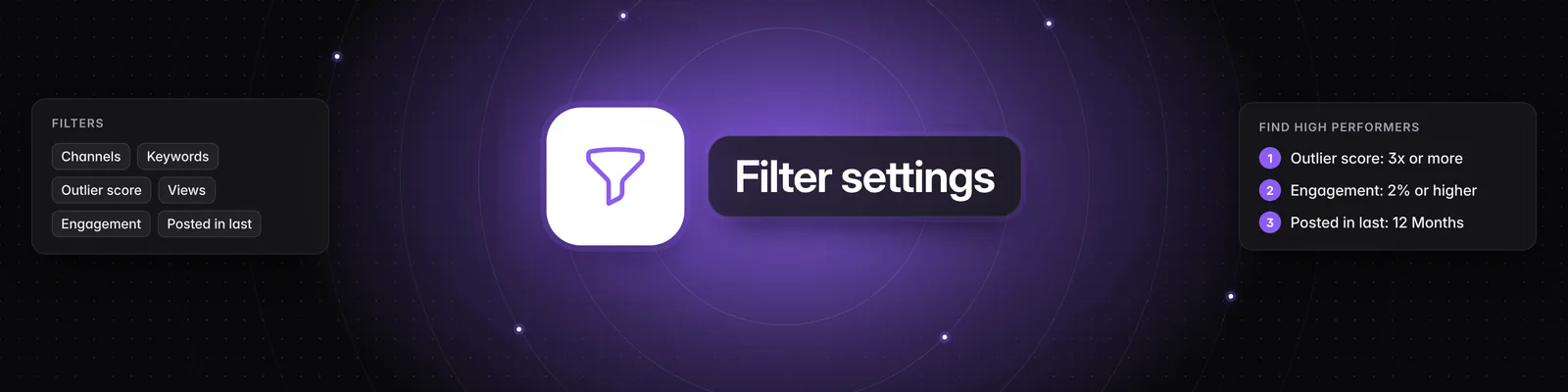
- Go to the Videos tab and set your filters in the Filters panel on the left, such as Channels, Keywords, Outlier score, Views, Engagement, Posted in last and Platform. If you don't see the panel, click the funnel icon (Filters) at the top of the page.
- Pick where to find videos under Browsing mode. Hover over each icon to see its name:
- Global Sandcastles: videos from across Sandcastles, not just your watchlist.
- Your personalized feed: videos from the channels in your watchlist.
- Your analyzed library: only videos you've already analyzed, so there's nothing new to queue here.
- To leave out videos you've already analyzed, choose Your personalized feed and turn off Include analyzed. This switch only works in Your personalized feed.
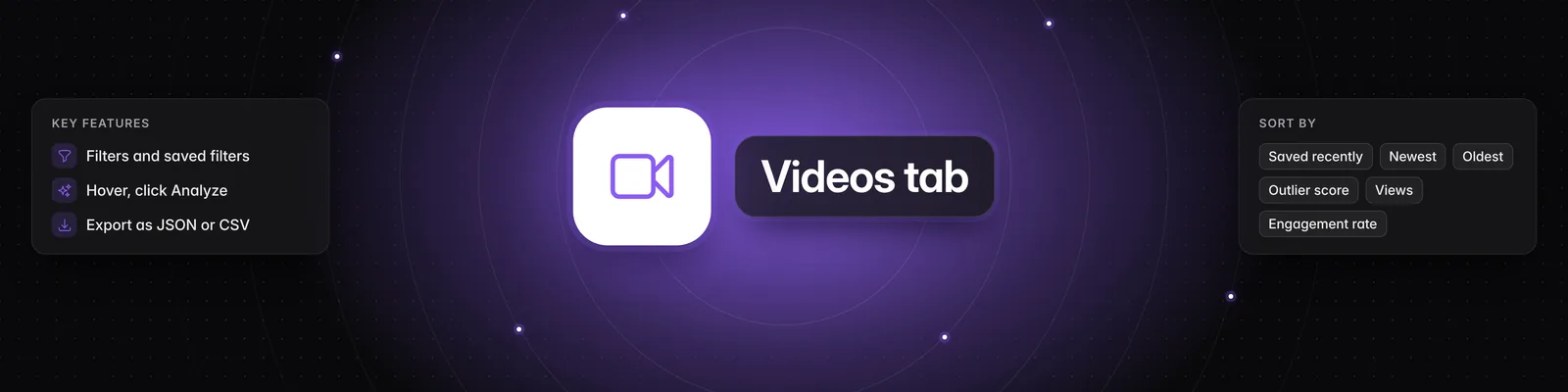
- Click the arrows icon (Sort by) and pick an order, such as Outlier score or Views. Bulk Analyze starts from the top of this order.
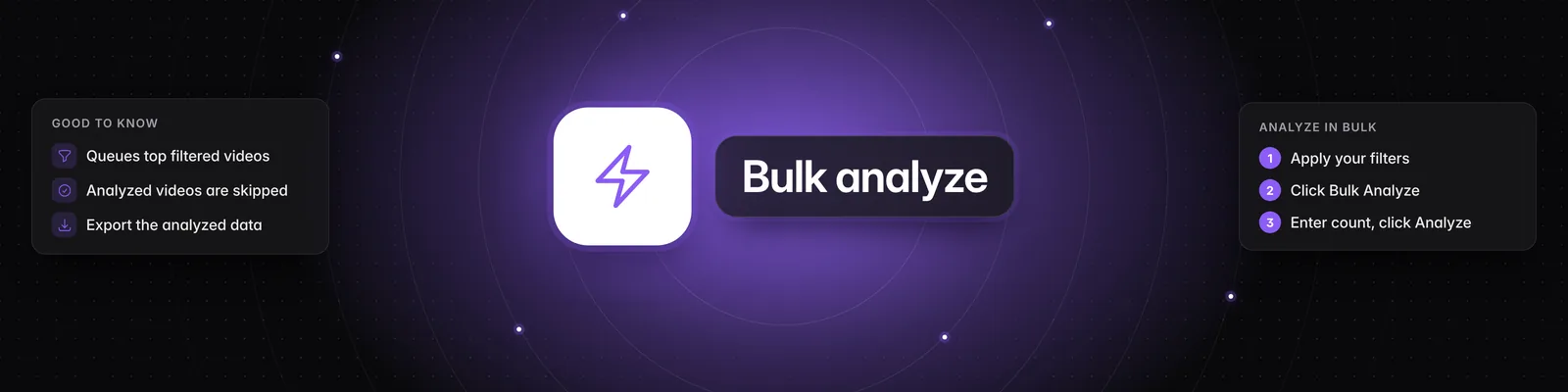
- Click the lightning bolt icon (Bulk Analyze) in the toolbar above your videos. The Bulk Analyze Videos window opens.
- Enter how many videos to analyze, from 1 to 100. Sandcastles queues that many videos from the top of your current feed.
- Click Analyze. A Bulk Analyze message shows how many videos were added to the analysis queue.
The first time you open Bulk Analyze, you'll see "Heads up! Bulk Analyze uses credits". Click I understand to continue.
What happens next
- Each queued video's card shows Queued, then Analyzing. A badge at the top of the Videos tab shows how many videos are still in analysis.
- When a video is done, its card shows a green Analyzed label. Click it to see the full breakdown. See How do I deep analyze a video in the Videos tab?.
- If you're on the Videos tab when the batch finishes, you'll see Finished analyzing! Click Go to Ideas to open the Ideas tab.
Credits
- Each video Bulk Analyze queues costs 1 credit. For example, queuing 14 videos uses up to 14 credits.
- Videos you've already analyzed or queued are skipped and don't use credits.
- If you run out of credits partway through, Bulk Analyze stops and shows a message like "12 videos queued. You've run out of analysis credits." The videos queued before that are still analyzed.
- If a video can't be analyzed, its card shows Failed to analyze. See Why did my video analysis fail? for what each message means and when your credit is returned.
- To learn how credits work, see How does the credit system work?.
Example: study one creator's top videos
- Under Browsing mode, choose Your personalized feed, then pick the creator under Channels.
- Set Posted in last to 12 Months and a minimum Engagement of 2%.
- Check the count above your videos, for example "Showing 42 of 42".
- Click Bulk Analyze, enter 42 and click Analyze.
Export your analyzed videos
You can export analyzed videos, including their analysis, as a JSON or CSV file. Exports are available on Pro, Visionary and Titan.
- Under Browsing mode, choose Your analyzed library to export only analyzed videos.
- Click the cloud icon (Export) in the toolbar above your videos.
- Choose a Format and enter the number of Items, up to 500. The export includes the top videos in your current filters and sort.
- Click Start export.
The download link works once and expires after 48 hours. You can download the file again anytime from the Exports page. For details, see What information can you export from the Videos tab?.
Troubleshooting
- The Bulk Analyze button is greyed out: You're a guest in someone else's workspace, or you haven't added any channels to your watchlist yet.
- "Enter a whole number between 1 and 100": Each run can queue up to 100 videos. To queue more, change your filters (for example, a different Posted in last range) and run Bulk Analyze again.
- Fewer videos queued than you entered: Videos you'd already analyzed or queued were skipped, your feed had fewer videos than the number you entered, or you ran out of credits.
- "Something went wrong. Please try again.": Run Bulk Analyze again. Videos that were already queued are skipped, so you won't be charged twice.
If you have any questions, please reach out to support@sandcastles.ai.