How to use the Videos tab
Understanding the Videos tab
The Videos tab is where you research short-form videos from YouTube Shorts, TikTok and Instagram. You can filter and sort videos to find top performers, analyze the ones you want to learn from, and export the results.
Choose a browsing mode
In the Filters panel, under Browsing mode, click one of three icons. Hover over an icon to see its name.
- Global Sandcastles (left icon): search the entire Sandcastles video database, including creators you don't follow. Available on Pro, Visionary and Titan. See How to use the global search feed in the Videos tab.
- Your personalized feed (middle icon): videos from the channels in your watchlist, plus any other videos you've analyzed. This is the default. Turn off Include analyzed to see only videos you haven't analyzed yet. This switch only works in this mode.
- Your analyzed library (right icon): only videos you've analyzed.
Filter videos
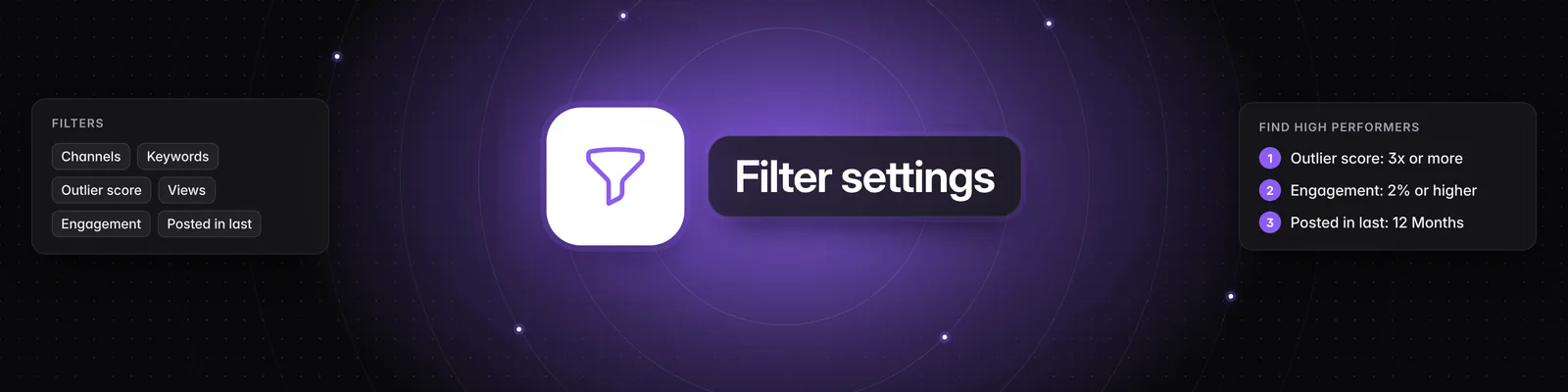
If you don't see the Filters panel, click the funnel icon (Filters) at the top of the page. Your results update as you change filters.
- Saved Filters: apply a set of filters you saved earlier.
- Channels: pick from your verified channels, your watchlist channels and other channels you've analyzed. To change your watchlist, click the people icon (Customize channels) at the top of the page.
- Keywords: search video captions and titles.
- Outlier score: set a minimum and maximum. The score compares a video's views with the channel's median views over the 90 days before it was posted. For example, 3x means three times the usual views.
- Views: set a minimum and maximum view count.
- Engagement: set a minimum and maximum engagement rate in percent. Engagement rate is (Likes + Comments) / Views.
- Posted in last: enter a number and choose Days, Weeks, Months or Years.
- Platform: choose YouTube, TikTok or Instagram.
In Global Sandcastles mode, Saved Filters, Channels and Save filter are hidden. Click Clear at the top of the panel to reset your filters. For tips, see How do I use the filter settings in the Videos tab?.
Sort videos
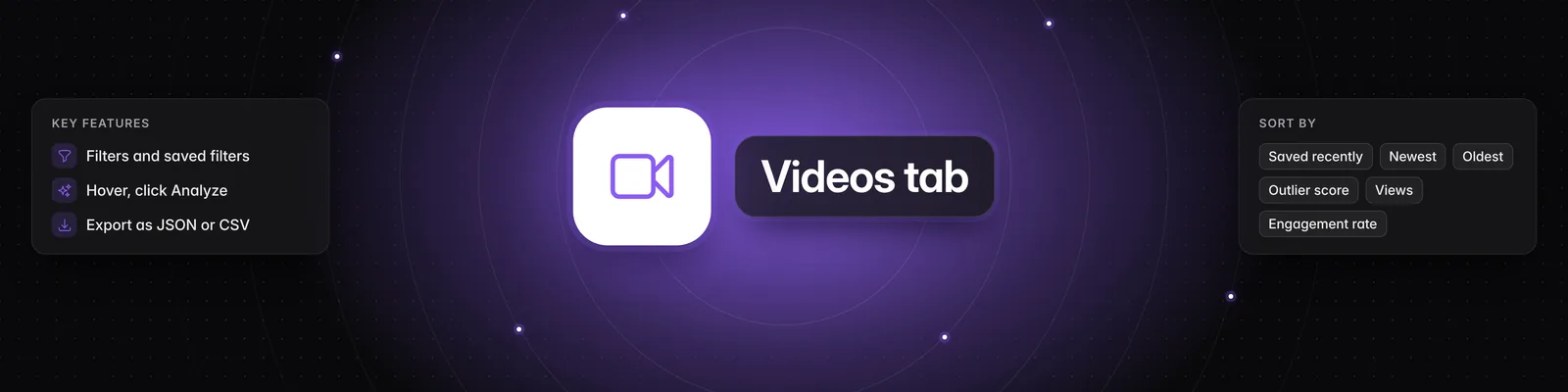
Click the arrows icon (Sort by) and choose Saved recently (videos you analyzed most recently), Newest, Oldest, Outlier score, Views or Engagement rate. Newest is the default. Saved recently and Oldest aren't available in Global Sandcastles mode.
Analyze videos
- Hover over a video and click Analyze to run a deep analysis. It uses 1 credit, and the video is added to your Ideas Inbox when it's done. See How do I deep analyze a video in the Videos tab?.
- The hover menu also has Play in new tab (play icon) and Add to project (folder icon).
- Analyzed videos show a green Analyzed label. Click one to see its full analysis. See How to use the Video Detail Page in Sandcastles.
- To analyze many videos at once, click the lightning bolt icon (Bulk Analyze) at the top of the page. It queues up to 100 videos from the top of your feed, at 1 credit each, and skips videos that are already analyzed or queued. Available on Pro, Visionary and Titan. See How to bulk analyze multiple videos simultaneously.
Add a video by URL
- Click the link icon (Add video URL) at the top of the page.
- Paste a YouTube Shorts, TikTok or Instagram link.
- Click Save video.
Sandcastles analyzes the video for 1 credit and adds it to your Ideas Inbox.
Save a filter
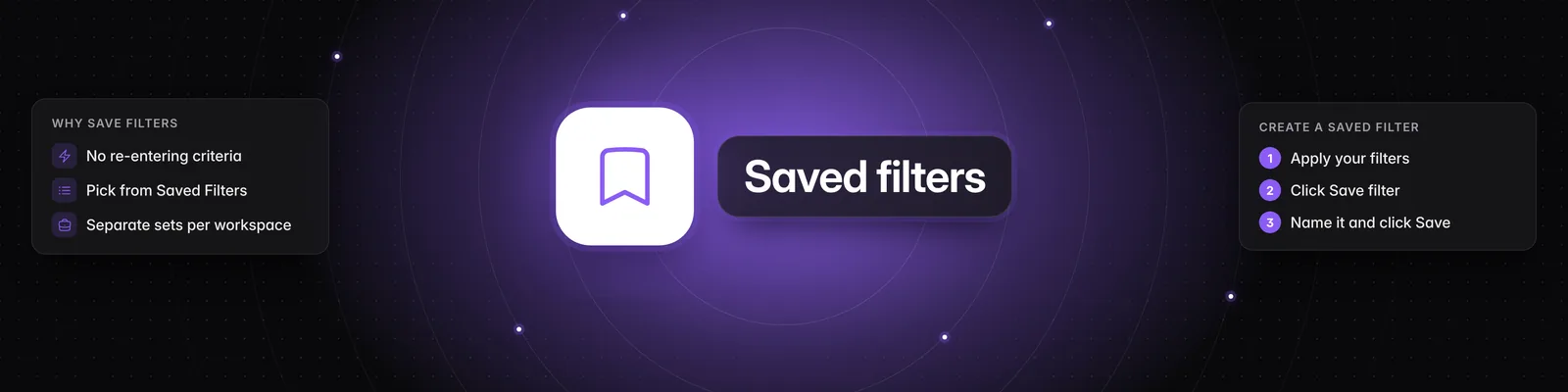
- Set the filters you want.
- Click Save filter at the bottom of the Filters panel.
- Enter a name and click Save. Using the name of an existing saved filter overwrites it.
Apply it later from Saved Filters. To delete the saved filter you've applied, click the trash icon next to Save filter. Saved filters aren't available on Starter. See How do I create a saved filter in the Videos tab?.
Export videos
Click the cloud icon (Export), choose JSON or CSV, and click Start export. The export includes the top videos in your current filters and sort, up to 500. Exports are available on Pro, Visionary and Titan. See What information can you export from the Videos tab?.
Important notes
- If you see "To explore videos, configure your feed first", click Get started to add channels to your watchlist.
- Workspace guests have read-only access, so they can't analyze videos, add video URLs or export.
If you have any questions, please reach out to support@sandcastles.ai.