Why did my video analysis fail?
Why a Video Analysis Fails
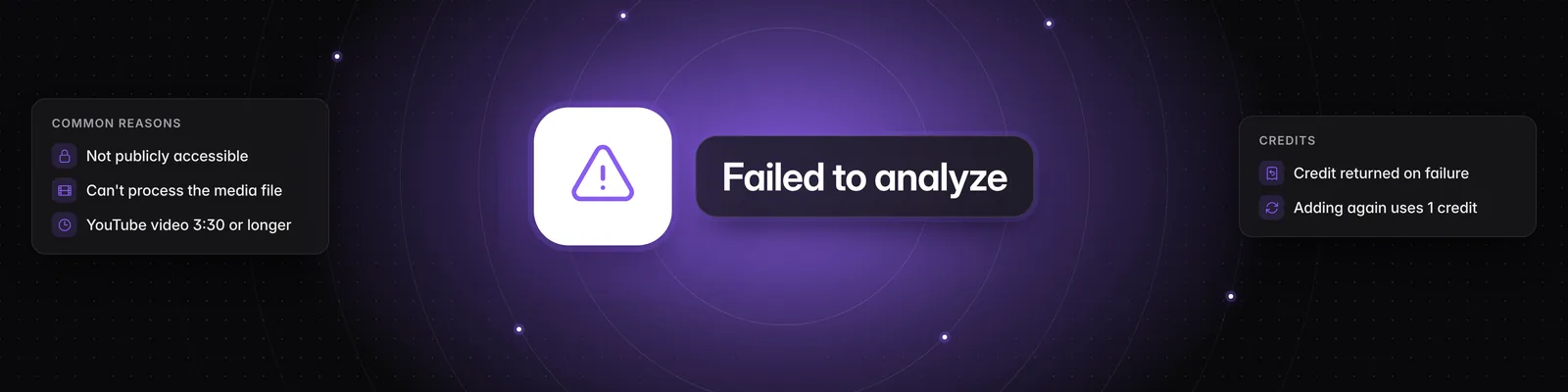
A deep analysis fails when Sandcastles can't open, download or process a video. The failed video shows a message that tells you why, and in most cases the credit goes back to your balance automatically.
Find the reason
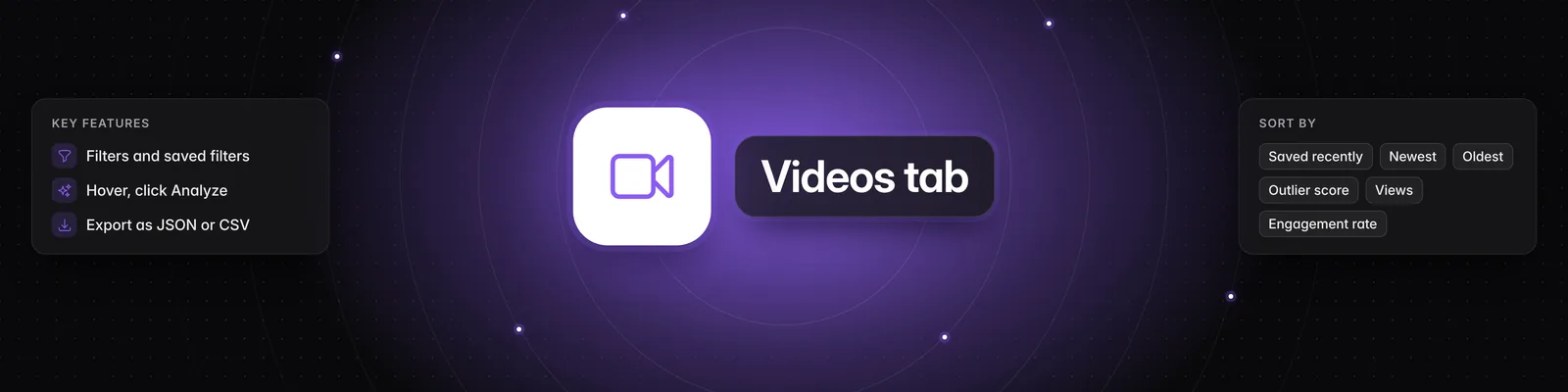
- Open the Videos tab. A video that couldn't be analyzed has a red Failed to analyze label.
- Click the video to open it.
- Read the message under We couldn't analyze this video, then find it in the list below.
What each message means
- "This video couldn't be publicly accessed, so we couldn't analyze it." Sandcastles couldn't view the video the way a logged-out visitor would. Usually the video has audience controls, for example it's private or age-restricted. The link may also be wrong. Open the video in an incognito (private) browser window. If you can't watch it there, Sandcastles can't analyze it. If it plays, check the link and add the video again.
- "We couldn't process this post's media file." Sandcastles found the post but couldn't get a video or media file from it that it could process. Check that the post opens and plays on the platform, then add it again.
- "This video is too long to process." Sandcastles is built for short-form video only. This message only appears for YouTube videos, and it means the video is 3 minutes 30 seconds or longer. You'll also see it if YouTube doesn't report the video's length.
- "We couldn't analyze this video at the moment." Sandcastles got the video, but the analysis itself didn't finish. Try adding the video again later.
- "This video is already present under the resolved channel. Try adding it again." Sandcastles already had this video saved under the creator's channel, so this copy was stopped. Add the video again with the same link.
- "Error, please try again." This shows in the Add a video URL box when Sandcastles can't use the link, for example because it isn't from Instagram, TikTok or YouTube. The video isn't added and no credit is used. Copy the video's link again and retry. See Which social media platforms can I add channels from in Sandcastles?.
How to add a video again
- Open the failed video and click Open in new tab. Copy the video's link from your browser's address bar.
- In the Videos tab, click the link icon (Add video URL).
- Paste the link and click Save video.
Adding a video again starts a new analysis and uses 1 credit. For more on this, see How do I import an individual video by URL into Sandcastles?.
Were you charged a credit?
Each deep analysis uses 1 credit when you add the video (see How do I deep analyze a video in the Videos tab? and How does the credit system work?). When an analysis fails, Sandcastles automatically returns that credit to your balance. That's what the note "you weren't charged any credits for this analysis" on a failed video refers to.
The credit isn't returned automatically when:
- The message is "This video is already present under the resolved channel."
- The analysis fails more than 3 hours after you first added that video, for example when you add it again the next day.
When to contact support
Email us with the video's link and the message you saw when:
- The video plays in an incognito window but still can't be accessed.
- The same message comes back after you add the video again.
- A YouTube video shorter than 3 minutes 30 seconds shows "This video is too long to process."
- You see a message that isn't listed here.
- Your credit balance doesn't look right after a failed analysis.
If you have any questions, please reach out to support@sandcastles.ai.