How do I manually import new channels into Sandcastles?
ChannelsUpdated October 2, 2026
Manually importing channels
If a channel doesn't show up in Suggested, Describe or Search, you can add it yourself by pasting its profile URL into the Add URL tab. Adding a channel that is new to Sandcastles requires a Pro, Visionary or Titan plan.
How to add a channel by URL
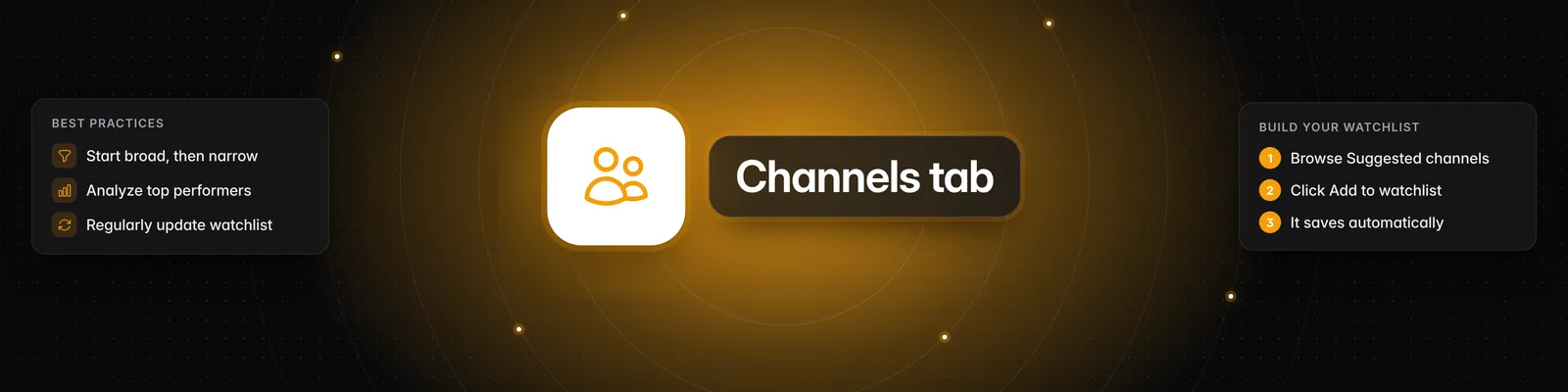
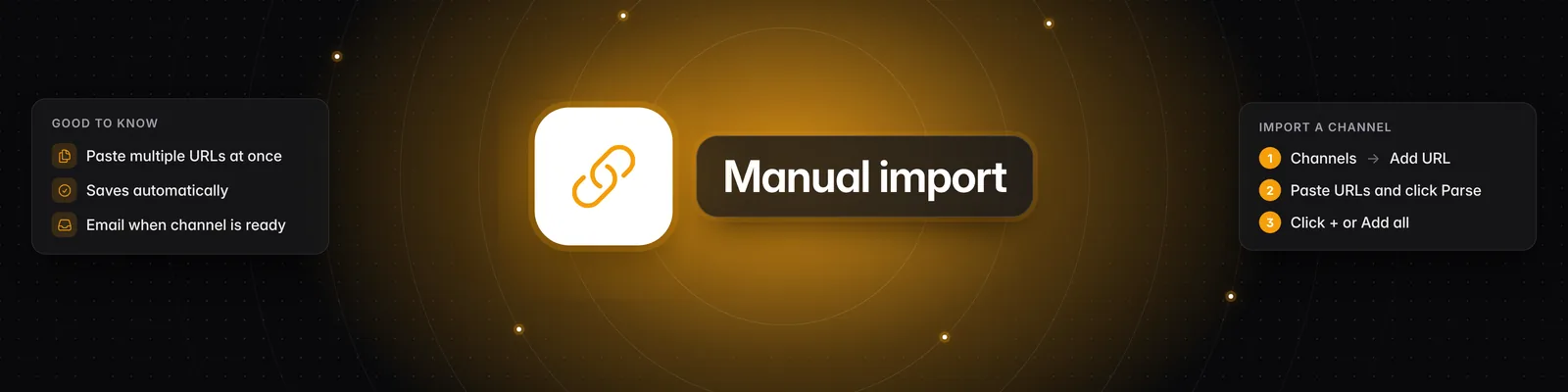
- Go to Channels in the left sidebar.
- Click the Add URL tab.
- Paste the channel's full profile URL, such as
https://www.tiktok.com/@handle,https://www.instagram.com/handleorhttps://www.youtube.com/@handle. Use the main profile URL, not a link to a single video or the YouTube/shortspage. To add several channels, put each URL on a new line or separate them with commas. - Click Parse.
- Review the channels under Successfully Parsed. Channels already in Sandcastles show their follower and view counts. Channels that aren't in Sandcastles yet say New channel!
- Hover over a channel and click the plus icon (Add to watchlist). To add every result at once, hover over Successfully Parsed and click Add all.
Your watchlist saves automatically. Saving... and then Saved appear at the top of Your Watchlist. There's no Save button to click.
How long does it take?
- Channels that are already in Sandcastles are added to your watchlist straight away.
- A new channel has to import its existing videos first. Channels with lots of videos take longer.
- When a new channel is ready, you'll get an email titled "Your channel @handle is ready!". It arrives at least 30 minutes after you add the channel.
- The email is only sent when Enable emails for channel adds is turned on in Settings > Feature Flags. It's on by default.
Plan limits
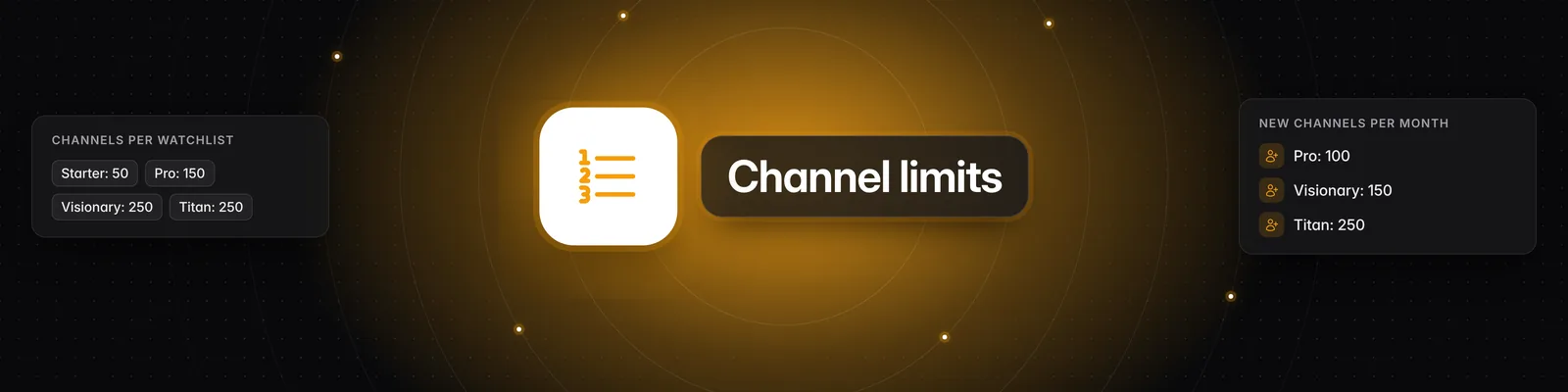
| Plan | New channels per month | Channels per watchlist |
|---|---|---|
| Starter | Not available | 50 |
| Pro | 100 | 150 |
| Visionary | 150 | 250 |
| Titan | 250 | 250 |
- Only channels that are new to Sandcastles use your monthly allowance. Adding a channel that's already in Sandcastles doesn't.
- The monthly allowance is shared by all workspaces on your account. New channels added through the MCP connector or API count toward it too.
- The allowance resets on the 1st of each month (UTC).
- The watchlist limit applies to each workspace's watchlist separately.
Troubleshooting
- "Upgrade required": You're on the Starter plan, which can't add channels that are new to Sandcastles. You can still add channels that are already in Sandcastles. Click Upgrade now to see the plans.
- "Monthly Limit Reached": You've used this month's allowance for new channels. The message shows the date your limit resets. On Titan, the message shows a Contact Support button instead of Upgrade.
- "Too many channels (max …)": Your watchlist is over your plan's limit, so your changes won't save. Remove some channels or upgrade your plan.
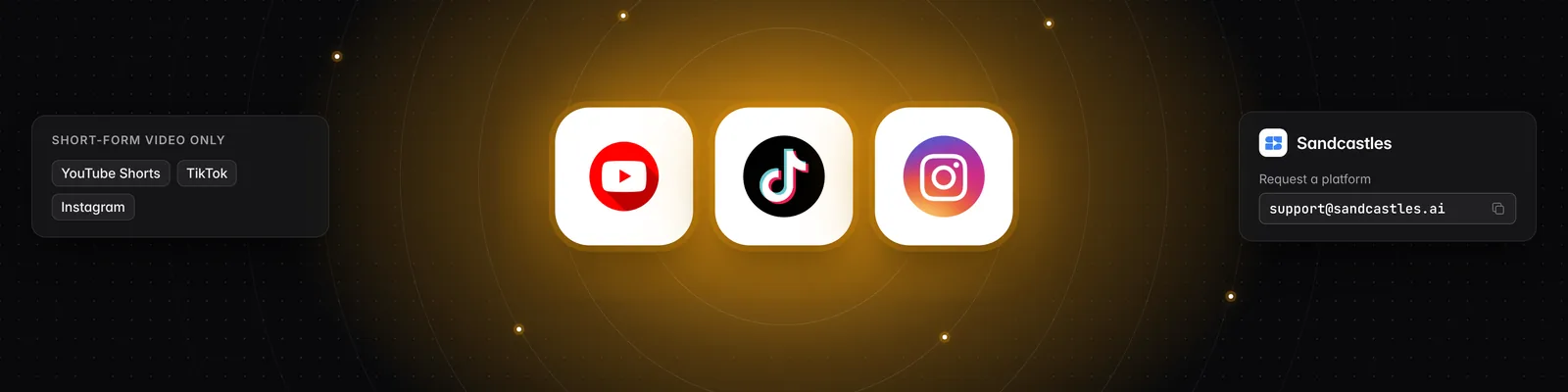
- "Failed to Parse": Sandcastles couldn't read the URL. Check that it's a full Instagram, TikTok or YouTube profile URL.
- "Failed to add some channels. Click for more info.": Click it to see why. "Cannot verify channel exists. Channel must be publicly accessible. Verify by visiting channel profile in a logged-out, incognito window." means Sandcastles couldn't see the channel. Only public channels can be added.
- Can't change the watchlist at all: If you're a guest in someone else's workspace, you can't change its watchlist. Ask the workspace owner to add the channel.
Related articles
- How to use the Channels tab
- Are there limits to how many channels I can have in my Watchlist?
- I manually added a channel into Sandcastles, why don't I see all their videos?
- Which social media platforms can I add channels from in Sandcastles?
If you have any questions, please reach out to support@sandcastles.ai.