How to set up the Sandcastles MCP in Cursor
MCPUpdated October 8, 2026
Setting up the Sandcastles MCP in Cursor
You can connect Sandcastles to Cursor in one click, or by adding the Sandcastles MCP server to Cursor's MCP settings file. Either way, you then sign in with your Sandcastles account and can use your Sandcastles data right in Cursor.
Before you start
- You need a Pro, Visionary or Titan plan. The MCP isn't included in the Starter plan.
- The Sandcastles MCP server URL is
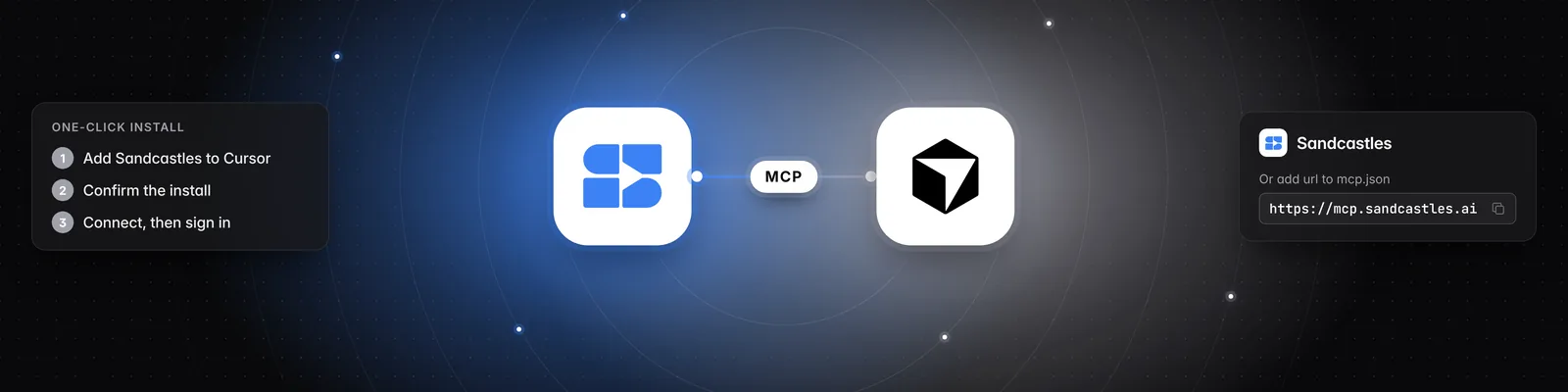
https://mcp.sandcastles.ai/. You can also find it in Sandcastles under Settings > Connectors on the MCP card. Hover over the URL and click Copy.
Option 1: Add Sandcastles with one click (recommended)
- Click Add Sandcastles to Cursor. Cursor opens and asks you to install the Sandcastles MCP server.
- Confirm the install.
- Connect Sandcastles when Cursor asks you to. You can also do this from the MCP section of Cursor Settings.
- Log in with your Sandcastles account and approve the connection.
Option 2: Set it up manually
-
Open the MCP settings file you want to use:
~/.cursor/mcp.jsonto use Sandcastles in all your projects..cursor/mcp.jsonin a project folder to use Sandcastles in that project only.
-
Add the Sandcastles server:
{ "mcpServers": { "sandcastles": { "url": "https://mcp.sandcastles.ai/" } } }If the file already has an
mcpServerssection, add thesandcastlesentry inside it instead of creating a second one. -
Save the file.
-
Log in with your Sandcastles account when Cursor prompts you, and approve the connection.
Try it out
Ask Cursor something like:
Use Sandcastles to show me the top videos in my watchlist from the last 7 days.
Important notes
- Cursor asks you to approve MCP connections and tool calls. Approve them to let Cursor use Sandcastles.
- If your account isn't on a Pro, Visionary or Titan plan, Sandcastles returns this message instead of results: "Your Sandcastles plan doesn't include MCP access."
- Analyzing a video uses 1 credit. If the video is already in your workspace, it doesn't use another credit.
- The MCP works in the workspace you last had open in Sandcastles. Ask Cursor to list your workspaces or switch to another one. Switching in Cursor also changes the workspace you see the next time you open Sandcastles.
- Servers you add to the Cursor editor don't carry over to Grok Bot. To use Sandcastles there, see How to set up the Sandcastles MCP in Grok Bot.
Related articles
- How to set up the Sandcastles MCP in any AI assistant
- How to set up the Sandcastles MCP in Grok Bot
- How to set up the Sandcastles MCP in Replit
- Does using the Sandcastles MCP cost credits?
If you have any questions, please reach out to support@sandcastles.ai.