How to use the /analyze tool (Sandcastles MCP in Claude)
Using /analyze in Claude
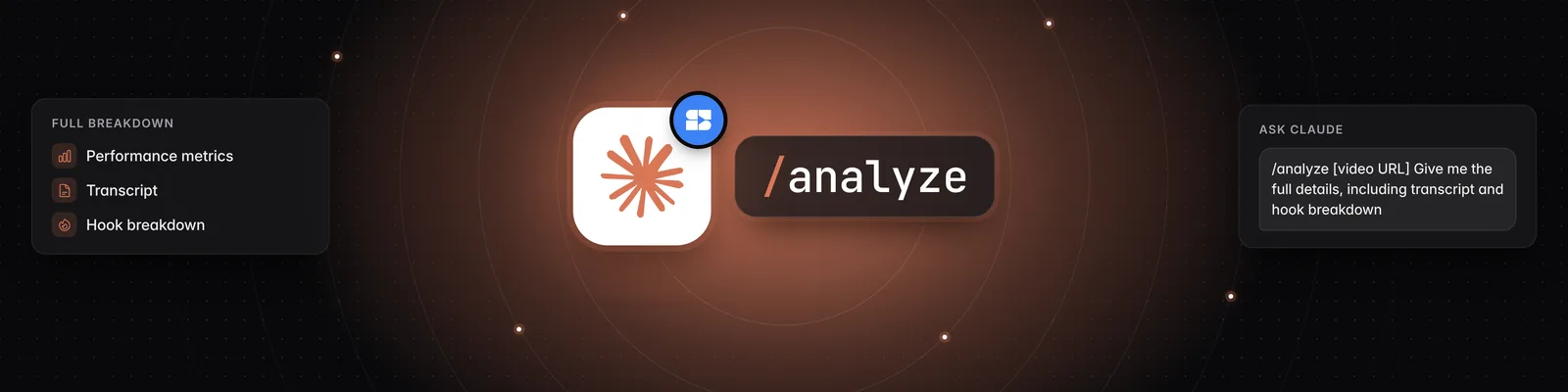
/analyze is a slash command in the Sandcastles plugin for Claude. Type it with a TikTok, Instagram or YouTube Shorts link, and Sandcastles breaks the video down for you: its hook, format, narrative structure and topic. It costs 1 credit per video, and it's free if the video is already analyzed in your current workspace.
What you need
- An active Pro, Visionary or Titan plan. The Sandcastles MCP isn't available on Starter.
- The Sandcastles connector added in Claude. See How to set up the Sandcastles MCP in Claude.
- The Sandcastles Claude plugin, which adds the slash commands. Add Sandcastles from the Claude directory at https://claude.ai/directory/sandcastles. See How to update the Sandcastles MCP plugin in Claude.
How to analyze a video
- Open the Claude desktop app and go to Cowork.
- Click + New task.
- Type
/analyzefollowed by a space. - Paste the link to the video. It must be a YouTube Shorts, TikTok or Instagram video.
- Optionally, add what you want to focus on, for example "Give me the full transcript and a hook breakdown."
- Press Enter. Claude queues the analysis, checks back until it's done, and then summarizes it for you. This usually takes a minute or two.
If you type /analyze without a link, Claude asks which video you want analyzed.
What the analysis includes
- Performance: views, likes, comments, outlier score, engagement rate and posting date.
- Hook: the spoken hook, its category and its formula.
- Format: the format category, type and flavor, plus the visual layout.
- Narrative structure: the video broken into sections, with the transcript for each.
- Topic and angle: the core topic, the angle it takes, and the common belief it challenges.
You can also ask for the full transcript. Claude puts it together from the narrative structure.
Credits
- Each new video costs 1 credit, taken from the same balance as the Sandcastles web app.
- If the video is already analyzed in your current workspace, it's free.
- Credits are shared across your workspaces, so analyzing a video that's only in another workspace uses 1 credit.
- For everything else about credits in Claude, see Does using the Sandcastles MCP cost credits?.
Analyzing videos in the Sandcastles web app
You can also analyze a single video without Claude:
- Go to the Videos tab.
- Click the link icon (Add video URL) above your videos.
- Paste the video link into the Add a video URL window.
- Click Save video.
To analyze many videos at once, use Bulk Analyze on the Videos tab. It queues up to 100 videos from the top of your current Videos feed, based on your filters and sort. See How to bulk analyze multiple videos simultaneously.
Troubleshooting
- "Your Sandcastles plan doesn't include MCP access.": Upgrade to Pro, Visionary or Titan.
- "URL must be from YouTube Shorts, TikTok, or Instagram.": Use a link from one of those platforms. Long-form YouTube videos aren't supported.
- "You don't have enough credits to perform this action.": Buy a credit boost in Settings > Subscription > Buy additional credits, or wait for your credits to reset.
- /analyze doesn't appear in Claude: Make sure you've added the Sandcastles plugin, not just the connector.
If you have any questions, please reach out to support@sandcastles.ai.