How to use the /channels-recap tool (Sandcastles MCP in Claude)
What does the /channels-recap command do?
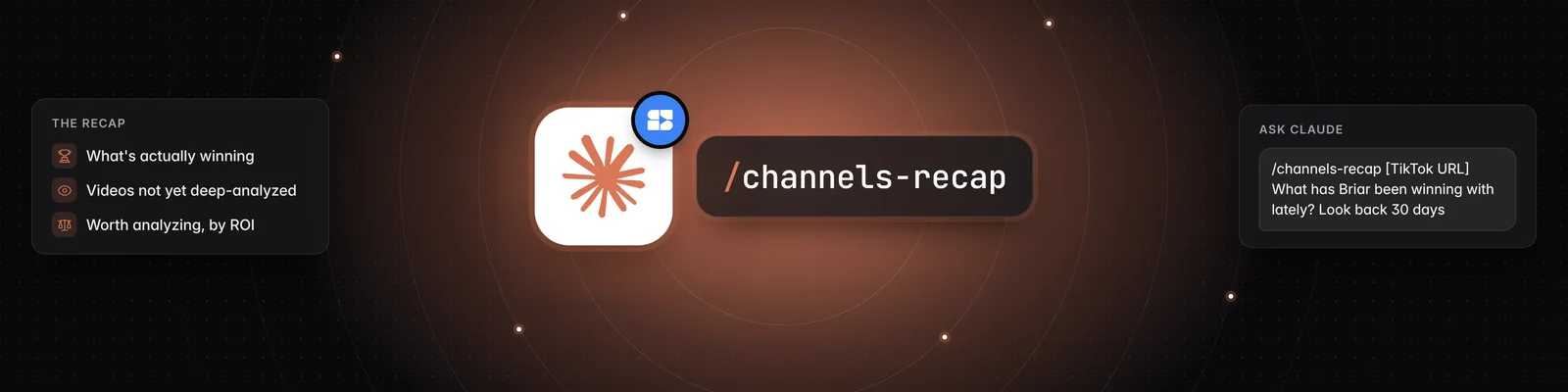
/channels-recap gives you a brief on what one channel has been doing lately. Claude looks at the channel's recent short-form videos and tells you what the creator is about, what they've been making content about, how they've been performing and which videos stand out.
Before You Start
You need:
- A Pro, Visionary or Titan plan. The Sandcastles MCP isn't available on the Starter plan.
- The Sandcastles connector and the Sandcastles plugin installed in Claude. See How to set up the Sandcastles MCP in Claude and How to update the Sandcastles MCP plugin in Claude.
The channel doesn't have to be in your Watchlist, but it does have to be in Sandcastles. If it isn't, Claude tells you and offers to add it. See How to use the /channels-add skill (Sandcastles MCP in Claude).
Using the /channels-recap Command
You run /channels-recap in Claude, either in a regular chat or in Cowork. You don't run it in the Sandcastles web app.
- Open a chat or a Cowork task in Claude.
- Type
/channels-recapfollowed by the channel's handle or URL, for example/channels-recap https://www.tiktok.com/@briarcochran. - Send it and read the recap Claude returns.
- Reply with follow-up questions to dig deeper.
If you leave out the channel, Claude asks you which channel you want a recap of.
Choosing the Platform
If you type only a handle and that handle exists on more than one platform, Claude asks which channel you meant. To skip that step, name the platform (YouTube Shorts, TikTok or Instagram) or paste the channel's URL. For example:
- "/channels-recap @briarcochran on Instagram"
- "Give me a recap of @briarcochran's TikTok."
Which Videos /channels-recap Looks At
By default, /channels-recap looks at the channel's 15 most recent videos posted in the last 30 days. To change that, ask Claude. You can look back up to 365 days and include up to 50 videos. For example:
- "Look back 90 days instead."
- "What has Briar been doing this year?"
- "Include up to 50 videos."
What You Get Back
Claude gives you a recap that covers:
- Focus: what the channel is about, based on its description and video titles.
- Recent topics: what the creator has been making content about lately.
- Performance: outlier scores, engagement and views, and whether the channel is trending up, flat or down over the period.
- 2–3 standout videos: each with a link to the video in Sandcastles.
Videos you've already analyzed in your workspace include their topic, hook and format, so the recap can go deeper on those. For the rest, Claude works from titles and performance numbers. You can ask Claude for more, for example:
- "What has Briar been winning with lately?"
- "Which of these videos haven't I analyzed yet?"
- "Analyze the top 3 and tell me if the pattern changes."
- "What are Briar's common hooks?"
Filtering by Views, Engagement or Outlier Score
/channels-recap doesn't filter by views, engagement rate or outlier score. If the channel is in your Watchlist, ask Claude to filter its videos (for example "Only show Briar's videos with over 1M views") and it searches them for you. If the channel isn't in your Watchlist, Claude offers to add it first. See How to use the /videos-watchlist tool (Sandcastles MCP in Claude).
Credits
/channels-recapis free. It doesn't use credits.- If you ask Claude to analyze videos from the recap, each video that isn't in your workspace yet uses 1 credit. See How to use the /analyze tool (Sandcastles MCP in Claude).
Troubleshooting
- Claude says the channel isn't in Sandcastles: Check the handle or URL. If it's right, let Claude add the channel, then run the recap again.
- Claude finds few or no videos: The channel may not have posted in the last 30 days. Ask Claude to look further back.
- "Your Sandcastles plan doesn't include MCP access.": Upgrade to Pro, Visionary or Titan.
- The command doesn't appear: If
/channels-recapisn't listed when you type /, update your plugin by adding Sandcastles from the Claude directory at https://claude.ai/directory/sandcastles. See How to update the Sandcastles MCP plugin in Claude.
Related Articles
- How to set up the Sandcastles MCP in Claude
- How to update the Sandcastles MCP plugin in Claude
- How to use the /channels-add skill (Sandcastles MCP in Claude)
- How to use the /analyze tool (Sandcastles MCP in Claude)
If you have any questions, please reach out to support@sandcastles.ai.