How do I update my payment method or download invoices?
BillingUpdated October 2, 2026
Managing your payment method and invoices
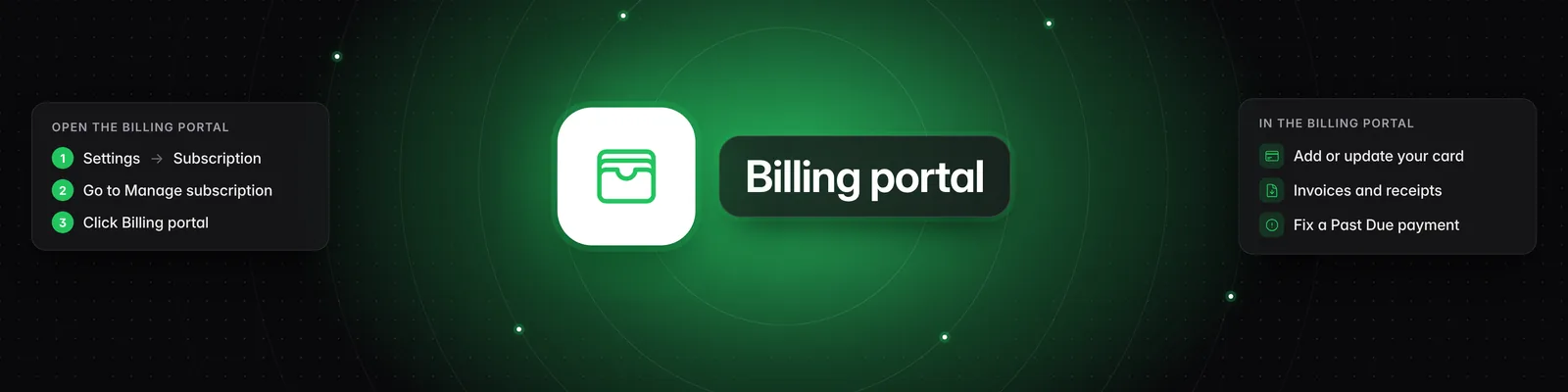
You update your card and find your invoices and receipts in the billing portal. To open it, go to Settings > Subscription > Billing portal.
How to open the billing portal
- Click Settings in the left-hand sidebar. The Subscription tab opens.
- Scroll down to Manage subscription ("Update your payment method, or cancel your subscription.").
- Click Billing portal. The portal opens in the same tab.
Update your card
- Open the billing portal.
- Add your new card or update the one on file.
You need a card on file to buy credit boosts. To learn more, read How do I buy more credits?.
Find your invoices and receipts
- Open the billing portal to view and download your invoices and receipts.
- Each credit boost purchase is billed as its own invoice, labeled "Sandcastles credit boost" with the number of credits.
If a payment fails
If a payment doesn't go through, your subscription becomes past due:
- Status under Settings > Subscription shows Past Due.
- Your plan's features are blocked until the payment goes through. If you try to use one, you may see an Upgrade required message.
- You can't buy credit boosts while your subscription is past due.
To fix it:
- Go to Settings > Subscription and click Billing portal.
- Update your card.
Once the payment goes through, your plan is active again.
Important notes
- If your payment is past due and you open the plans, for example with Upgrade plan or Upgrade now, you'll see Your subscription is past due instead. Click Open billing portal and update your card there.
- If your subscription is past due and you cancel it, or it was already set to cancel, it ends right away instead of at the end of your billing period.
- Your sign-in email appears under Settings > Profile, but you can't change it in the app. Your billing is linked to that email.
Troubleshooting
- "Couldn't open billing portal. Try again." Click Billing portal again. If it keeps happening, contact support.
- "Couldn't open the billing portal. Please try again." Click Open billing portal again. If it keeps happening, contact support.
- "No payment method on file. Please add one in the billing portal and try again." Add a card in the billing portal, then buy your credit boost again.
- "Credit boosts require an active subscription." Your subscription may be past due. Update your card in the billing portal.
- "Payment failed. Please update your card via the billing portal and try again." Your card was declined when you upgraded from Starter. Update it in the billing portal, then try the upgrade again.
- "You already have a subscription. Manage it from the billing portal." You can't start a second subscription. Go to Settings > Subscription and click Billing portal to manage the one you have.
Related articles
- How do I buy more credits?
- How does the credit system work?
- What are the differences between the Starter, Pro, Visionary, and Titan plans?
- What settings can I change in Sandcastles?
If you have any questions, please reach out to support@sandcastles.ai.