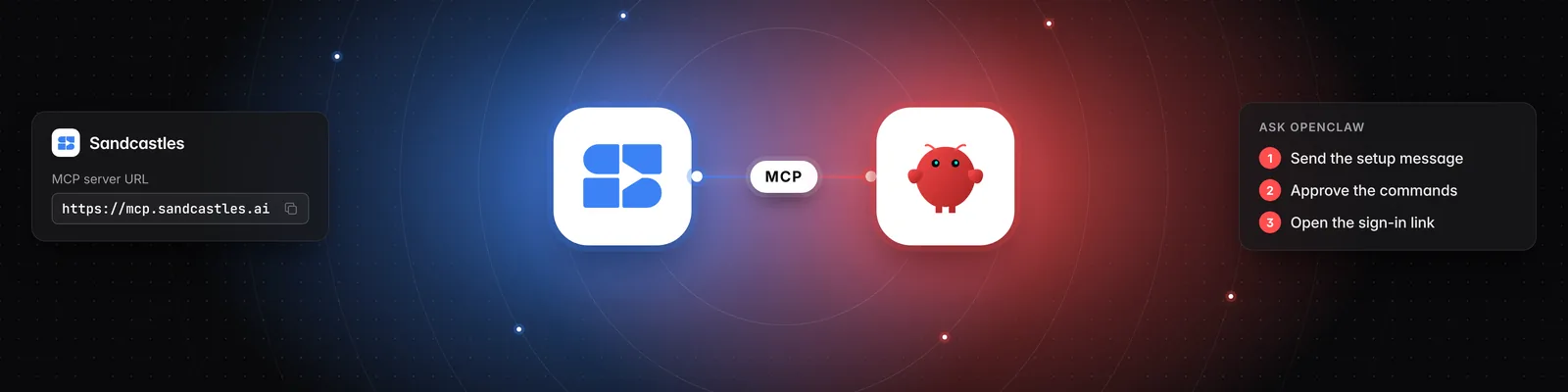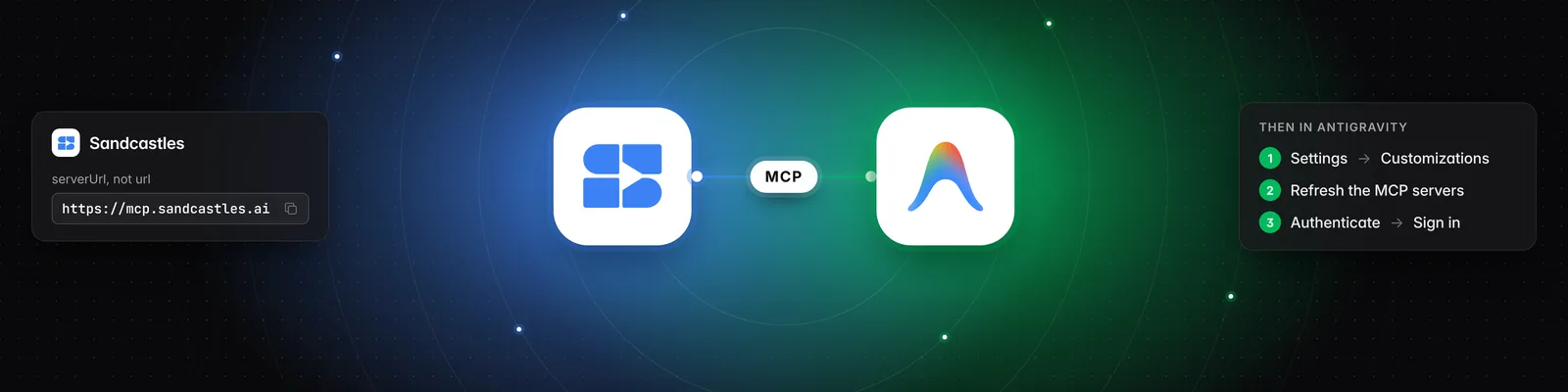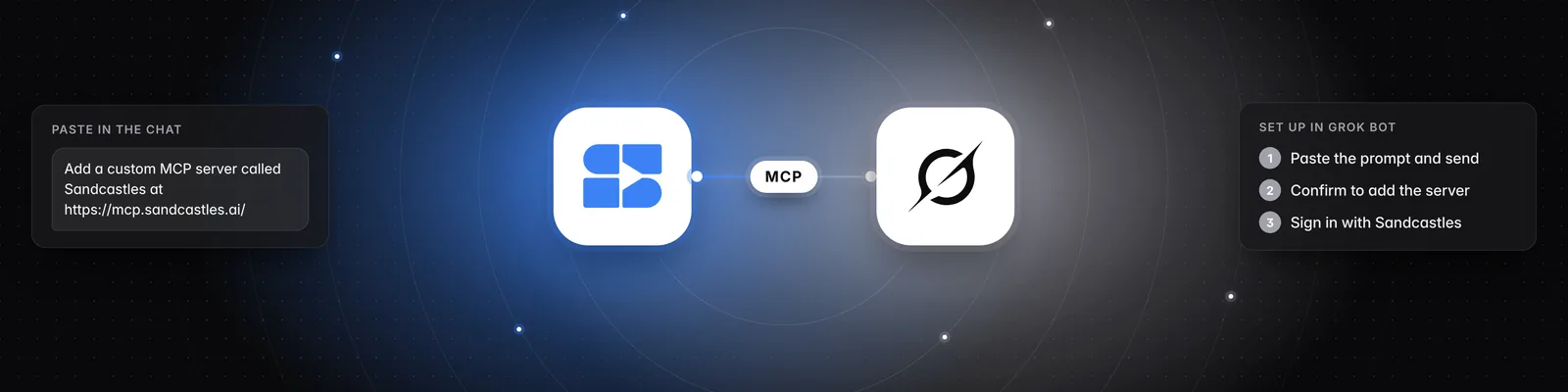
How to set up the Sandcastles MCP in Perplexity
Connecting the Sandcastles MCP to Perplexity
You can add Sandcastles to Perplexity as a custom connector, then ask Perplexity to research your watchlist, videos and channels. Once it's added, it works in both Perplexity and Perplexity Computer.
Before you start
- You need a Sandcastles Pro, Visionary or Titan plan. The MCP isn't available on the Starter plan.
- You need a Perplexity Pro, Max or Enterprise plan.
- On a Perplexity Enterprise plan, an admin has to allow members to add custom connectors, or add the Sandcastles connector for the whole organization.
Get your Sandcastles MCP URL
- Open Sandcastles and go to Settings > Connectors.
- In the MCP card, hover over the URL and click Copy. The URL is
https://mcp.sandcastles.ai/.
If you're on the Starter plan, the MCP card shows a See plans button instead of the URL. Upgrade to Pro or higher to continue.
Add Sandcastles to Perplexity
-
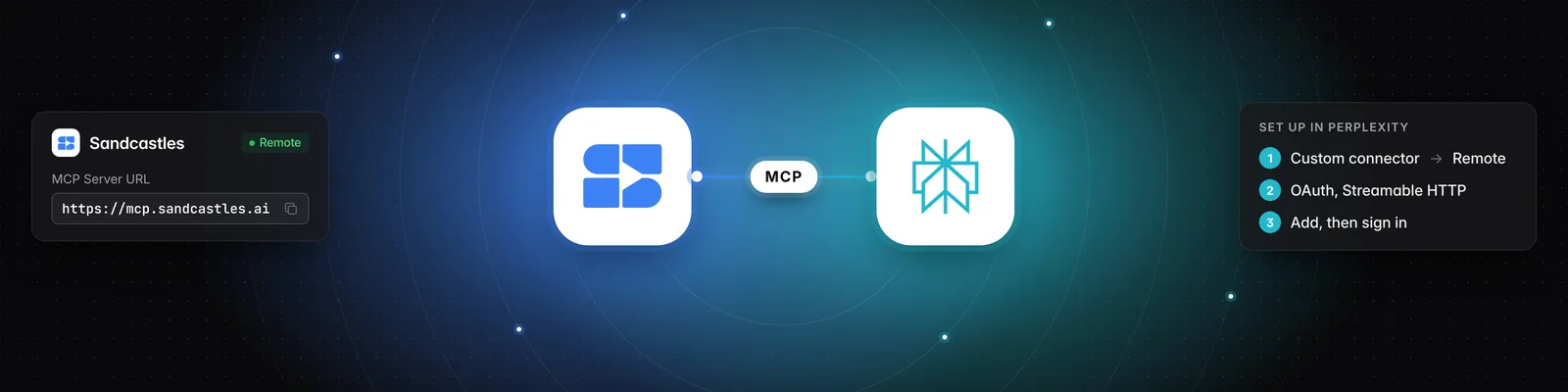
In Perplexity, go to Account settings > Connectors (
perplexity.ai/account/connectors). -
Click + Custom connector.
-
Choose Remote.
-
In the Name field, enter
Sandcastles. -
In the MCP Server URL field, paste the URL:
https://mcp.sandcastles.ai/ -
Set Authentication to OAuth.
-
Set Transport to Streamable HTTP.
-
Tick the acknowledgement checkbox.
-
Click Add.
-
Click the Sandcastles connector card, then sign in with your Sandcastles account and approve access.
Try it out
Start a new chat in Perplexity or Perplexity Computer and ask for something from Sandcastles, for example:
Use Sandcastles to show me the top videos in my watchlist from the last 7 days.
Important notes
- Analyzing a video that isn't in your workspace yet uses 1 credit. Searching and asking questions doesn't use credits. See Does using the Sandcastles MCP cost credits? for details.
- The MCP works in the workspace you last had open in Sandcastles. You can ask Perplexity to list your workspaces or switch to another one. Switching in Perplexity also changes the workspace you see the next time you open Sandcastles.
Troubleshooting
- New Sandcastles tools don't show up. Remove the Sandcastles connector in Account settings > Connectors, then add it again using the steps above.
- "Your Sandcastles plan doesn't include MCP access." Your Sandcastles account isn't on a Pro, Visionary or Titan plan. Upgrade, then try again.
- "You don't have enough credits to perform this action." You're out of credits for analyzing new videos. You can buy more in Settings > Subscription > Buy additional credits.
Related articles
- How to set up the Sandcastles MCP in any AI assistant
- How to set up the Sandcastles MCP in Claude
- How to set up the Sandcastles MCP in ChatGPT
- Does using the Sandcastles MCP cost credits?
If you have any questions, please reach out to support@sandcastles.ai.