Why isn't the Sandcastles MCP working?
Fixing problems with the Sandcastles MCP
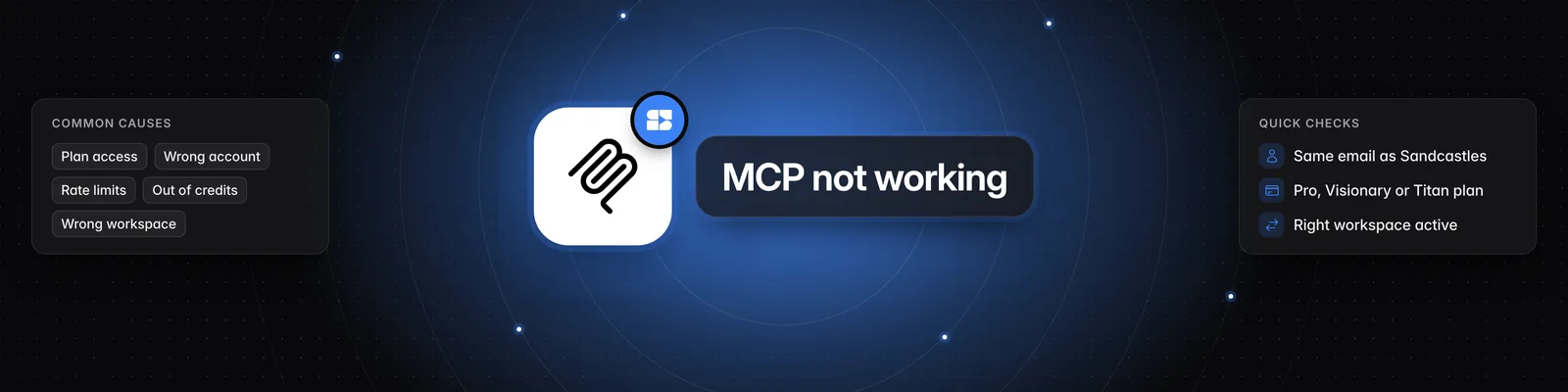
Most MCP problems come from your plan, the account you signed in with, rate limits, credits or the workspace you're in. Find the message your assistant shows below, or the problem you're seeing, and follow the steps.
Your assistant may reword the message, but it usually includes the text shown here.
"Your Sandcastles plan doesn't include MCP access."
The MCP needs an active Pro, Visionary or Titan plan. You'll see this message if:
- You're on the Starter plan.
- You don't have a plan.
- Your subscription isn't active, for example because a payment failed.
To fix it:
- In Sandcastles, go to Settings > Subscription and check your plan.
- Upgrade, or update your payment method if a payment failed. See How do I update my payment method or download invoices?.
- Go back to your assistant and try again.
If your plan looks right, check that you signed in to the connector with the same account (see the next section).
Sandcastles shows as connected, but no tools appear
Your assistant only gets the Sandcastles tools once Sandcastles accepts your sign-in. If your account has no active Pro, Visionary or Titan plan, or you signed in with a different account, the tools won't load, even if the connector says it's connected. You may also see "No active Sandcastles account found for this token".
- Disconnect or remove Sandcastles in your assistant's connector or MCP settings.
- Connect it again.
- When the Sandcastles sign-in page opens, sign in with the same email you use for Sandcastles, the account that has your plan.
- Approve access.
- Ask your assistant "Is Sandcastles connected?". It uses the
check_connectiontool and tells you the email you're signed in with and your active workspace. In Claude Code, you can also run/mcpto check that Sandcastles is listed.
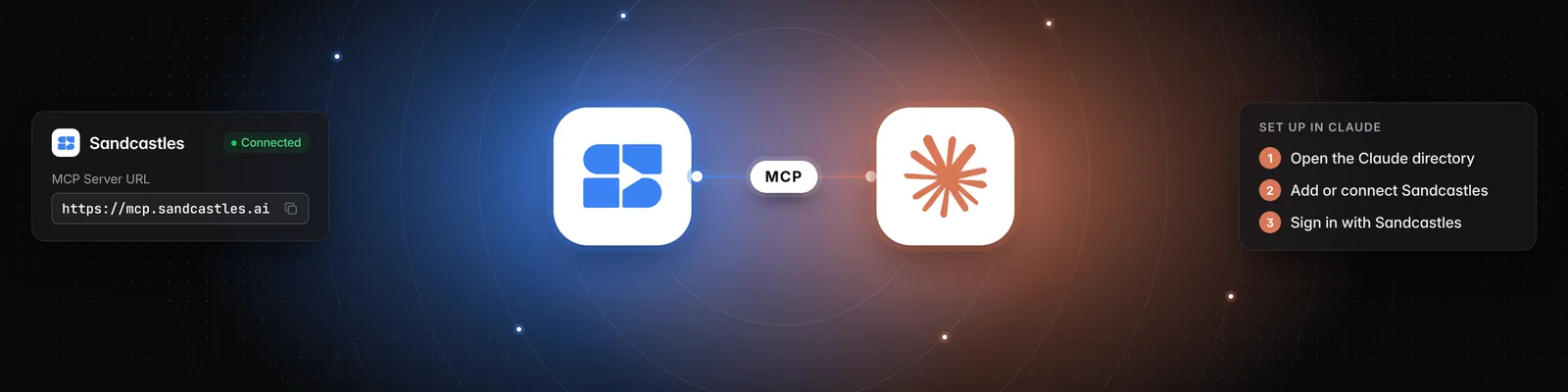
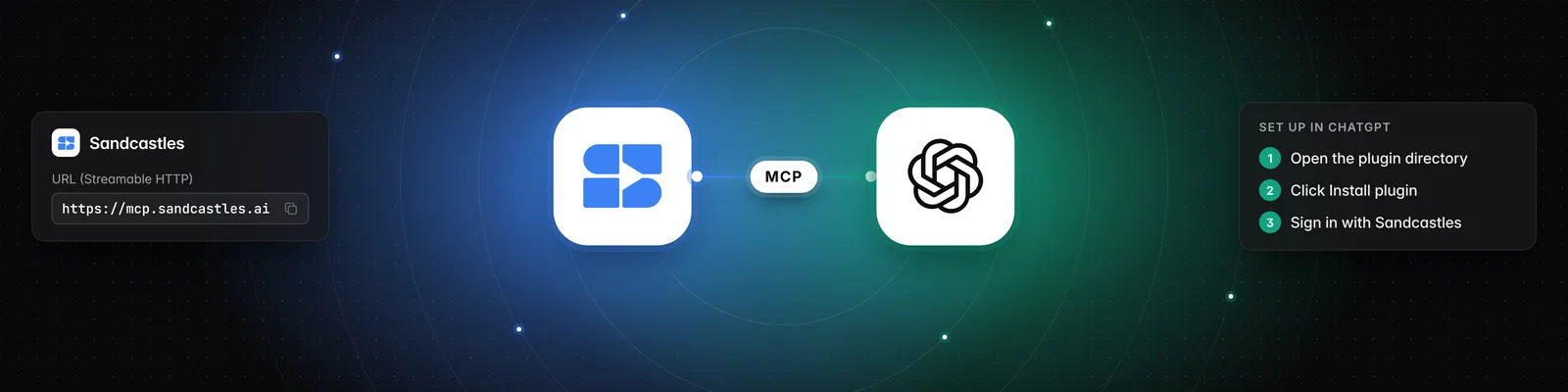
For setup steps in your assistant, see How to set up the Sandcastles MCP in any AI assistant.
"Rate limit exceeded"
Sandcastles limits how many requests an account can make through the MCP, using a sliding window that's there to prevent abuse. You shouldn't hit it under normal use. The message tells you how many seconds to wait.
Every tool call counts, and so does your assistant loading the list of Sandcastles tools. To fix it:
- Wait for the time shown in the message, then try again.
- Ask your assistant to make fewer requests at once, for example by analyzing videos in smaller batches.
The limits are per account. Using the Claude plugin and a connector at the same time, or several assistants, doesn't give you extra requests. They all share the same limits.
"You don't have enough credits to perform this action."
Analyzing a video that isn't in your current workspace yet uses 1 credit. When you run out, analyzing new videos stops, but searches, recaps and other free tools keep working.
- Buy more in Settings > Subscription > Buy additional credits, or upgrade your plan.
- Ask your assistant "How many credits do I have left?" to check your balance.
See Does using the Sandcastles MCP cost credits? for what's free.
A call fails on a specific video
- "URL must be from YouTube Shorts, TikTok, or Instagram." Sandcastles only works with short-form videos from these platforms. Long-form YouTube videos can't be analyzed. Check the link and try again.
- "Video not found": Sandcastles couldn't find that video. Paste the full video link instead.
Results come from the wrong workspace
The MCP works in the workspace you last had open in Sandcastles. To change it:
- Ask your assistant to list your workspaces.
- Ask it to switch to the workspace you want, for example "Switch my Sandcastles workspace to Client A".
Switching in your assistant also changes the workspace you see the next time you open Sandcastles. Switching workspaces in Sandcastles changes the MCP's workspace too. See How to use the Workspaces feature.
If you see "Your active workspace is invalid.", the workspace you were in may have been deleted. Ask your assistant to list your workspaces and switch to one of them, or open Sandcastles in your browser and try again.
Slash commands are missing in Claude
Slash commands such as /analyze and /channels-recap come from the Sandcastles Claude plugin. If they don't appear when you type / in Claude, see How to update the Sandcastles MCP plugin in Claude.
ChatGPT and Codex don't have the Sandcastles slash commands. They can use all the same tools, so describe what you want in plain words.
Still stuck?
If you see "Sandcastles couldn't complete ... because of an unexpected error", try again in a moment. If it keeps happening, email us with:
- The assistant you're using, such as Claude, Claude Code, ChatGPT or Codex
- The exact error message, including any reference it shows
- The date and time it happened, with your time zone
Related articles
- How to set up the Sandcastles MCP in any AI assistant
- How to set up the Sandcastles MCP in Claude
- How to set up the Sandcastles MCP in ChatGPT
- How to update the Sandcastles MCP plugin in Claude
- Does using the Sandcastles MCP cost credits?
If you have any questions, please reach out to support@sandcastles.ai.