How to use the Channel Head-to-Head report
What the Channel Head-to-Head report does
The Channel Head-to-Head report puts two channels side by side. It shows who wins on each metric, what each channel does well and what each one should try next. Compare your channel with a competitor, or two creators you want to learn from.
Which plans include it
- The Channel Head-to-Head report is available on the Pro, Visionary and Titan plans.
- Reports aren't available on Starter. See What are the differences between the Starter, Pro, Visionary, and Titan plans?.
- Workspace guests can view reports but can't create, run, export or email them.
Creating a head-to-head report
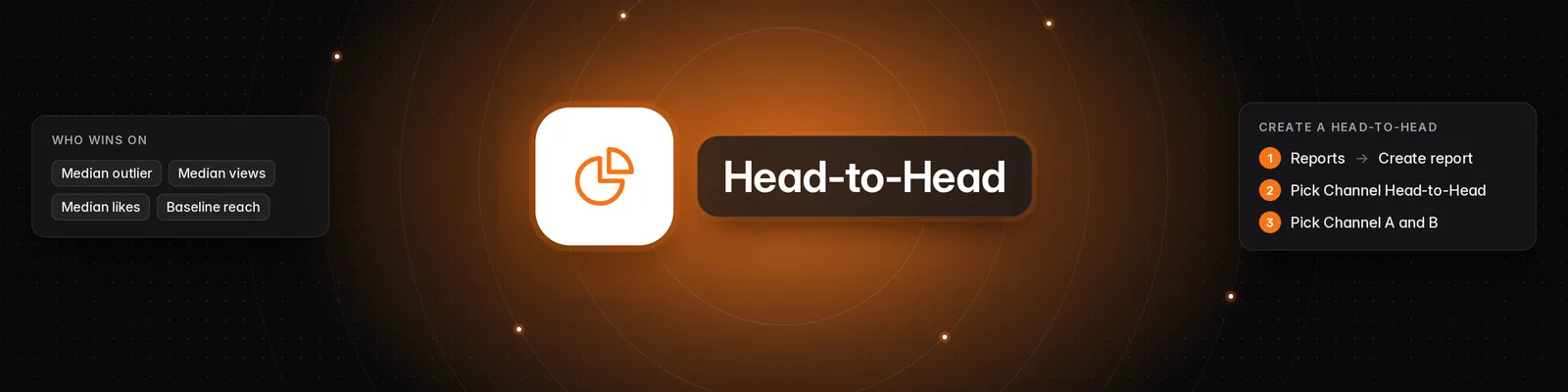
- Click Reports in the left-hand sidebar, under Research.
- Click the + icon (Create report) in the top right. If you don't have any reports yet, click Set up your first report.
- Open Pick a report type... and choose Channel Head-to-Head. The box below shows the Base report cost.
- Under Channel A and Channel B, pick the two channels. You can choose from your verified channels, your watchlist channels and other channels you've analyzed. You can't pick the same channel twice.
- Click Show optional configs to change these settings:
- Name: a custom name for the report.
- Schedule: Just once, Every day, Every 7 days or Every 30 days.
- Analysis budget: how many videos to analyze across both channels. The minimum is 30, split evenly between the two channels.
- Which videos to compare: Most recent (the default), Most views, Highest engagement or Biggest outliers.
- Check the cost at the bottom of the window, then click Run now.
What's in the report
- Channel bios: each channel's niche, a short summary of what it makes and Who this channel is for.
- Performance metrics: eight metrics side by side, with a short summary of how the two channels compare:
- Median outlier, Median views, Median engagement, Median likes, Median comments and Baseline reach (baseline views as a share of followers). The better channel on each of these gets a Wins badge.
- Median duration and Posting cadence (videos per week) are shown without a winner. Posting cadence only appears when Which videos to compare is set to Most recent.
- Every figure comes only from the videos in the report, not from each channel's full catalog.
- Key takeaways: where each channel wins against the other.
- Insights: switch between Topics, Formats, Hooks, Scriptwriting and Visuals. For each, you see each channel's top 3 patterns, ranked by median outlier score. Hook patterns quote the best-performing hook. Click a numbered pill to open the video behind a pattern.
- Plays: under each insight, a play for each channel ("@handle should..."), with What to do, Why it works and How to execute it.
- Videos: every video used in the comparison, ranked by outlier score for each channel.
How many credits it costs
Each run costs the Base report cost, plus 1 credit for each new video the report analyzes, up to your Analysis budget. Videos you've already analyzed in this workspace don't cost credits again. The bottom of the window shows the most a run can cost.
If a run fails, the base cost is refunded automatically. See How to use the Reports tab and How does the credit system work? for more.
Emails and sharing
- When a report finishes, you get an email titled "Your report is ready", followed by the report's name. To stop these emails, go to Settings > Feature Flags and turn off Enable emails for reports.
- On the report page, click Email to send a copy to any address, or Export to download it as JSON.
Using it with the Sandcastles MCP
Open the report and click Continue with MCP, then Copy to clipboard. Paste the prompt into your AI assistant. It uses the Get Report Details tool to read the full report. Your assistant can also use List Reports to find your reports and their past runs. See How to set up the Sandcastles MCP in any AI assistant.
Troubleshooting
If a run fails, open the report to see the reason under Failed to generate report.
- "Report is already queued for execution." Each report can only have one run at a time. Wait for the current run to finish.
- "Cannot generate report - no videos to analyze for these channels." No videos matched your settings. Check that both channels have short-form videos.
- "Cannot analyze videos for this report - out of credits. Please add more credits or upgrade your plan." You ran out of credits before any videos could be analyzed. If credits run out partway through, the report uses the videos analyzed so far.
- "Cannot generate report - no successfully analyzed videos for these channels." None of the selected videos could be analyzed. Try again, or pick different channels.
- Email: "Failed to generate report - out of credits". A scheduled report was due, but you didn't have enough credits for its base cost, so it didn't run.
- Report is taking a while. New videos have to be analyzed first. The report page shows Generating report... until it's ready.
If you have any questions, please reach out to support@sandcastles.ai.